




How can I export my iCal?

Exporting your iCal means copying the calendar link from a site where your property is listed, so you can paste it into another calendar and keep your availability in sync. Once you export a link and add it elsewhere, a booking on one site automatically blocks those dates on the other, which helps prevent double bookings.
What you will need
Your property listed on the site you want to export from (for example, Stay Luxe, Airbnb, Booking.com, Vrbo, or TripAdvisor), and access to that site’s calendar or sync settings.
Where to find your iCal link
Every site keeps its iCal link in the calendar or availability settings of your listing. It is usually labelled something like “Export calendar”, “Sync calendars”, or “iCal link”. When you find it, you copy the link, then paste it into the import field of the calendar you want to keep updated (such as Stay Luxe).
Step-by-step guide to export iCal link in Stay Luxe
1 Go to the StayLuxe host calendar.
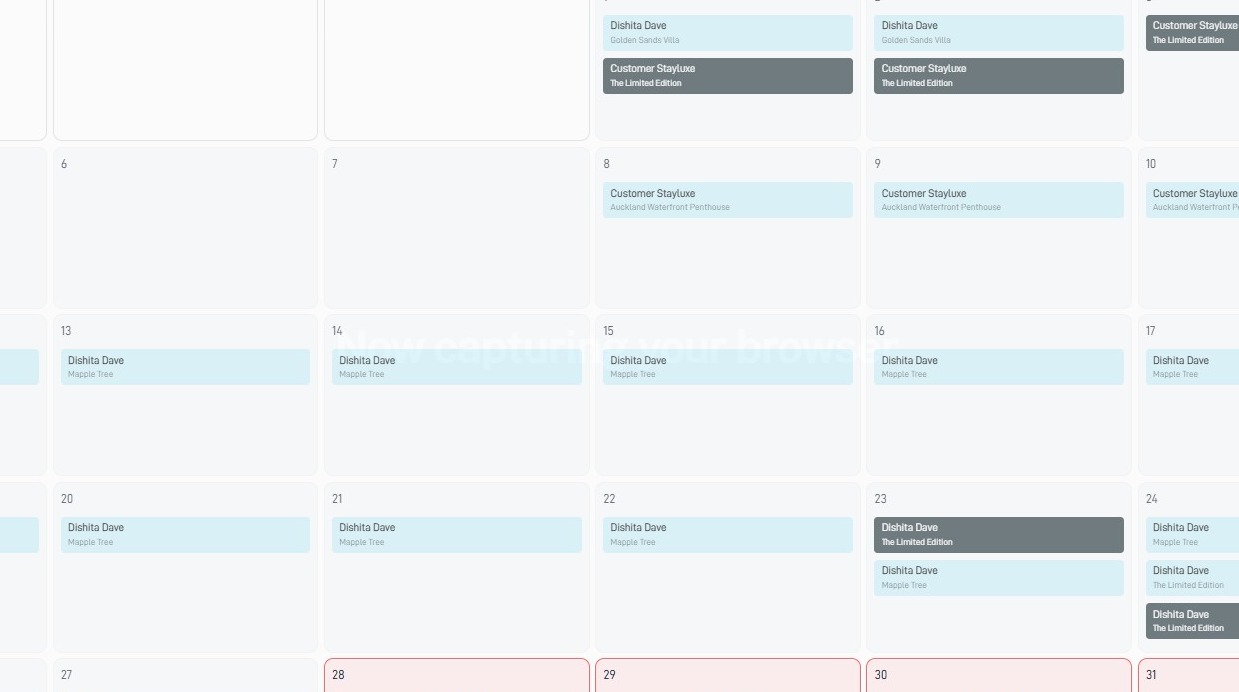
Calendar URL Export (recommended)
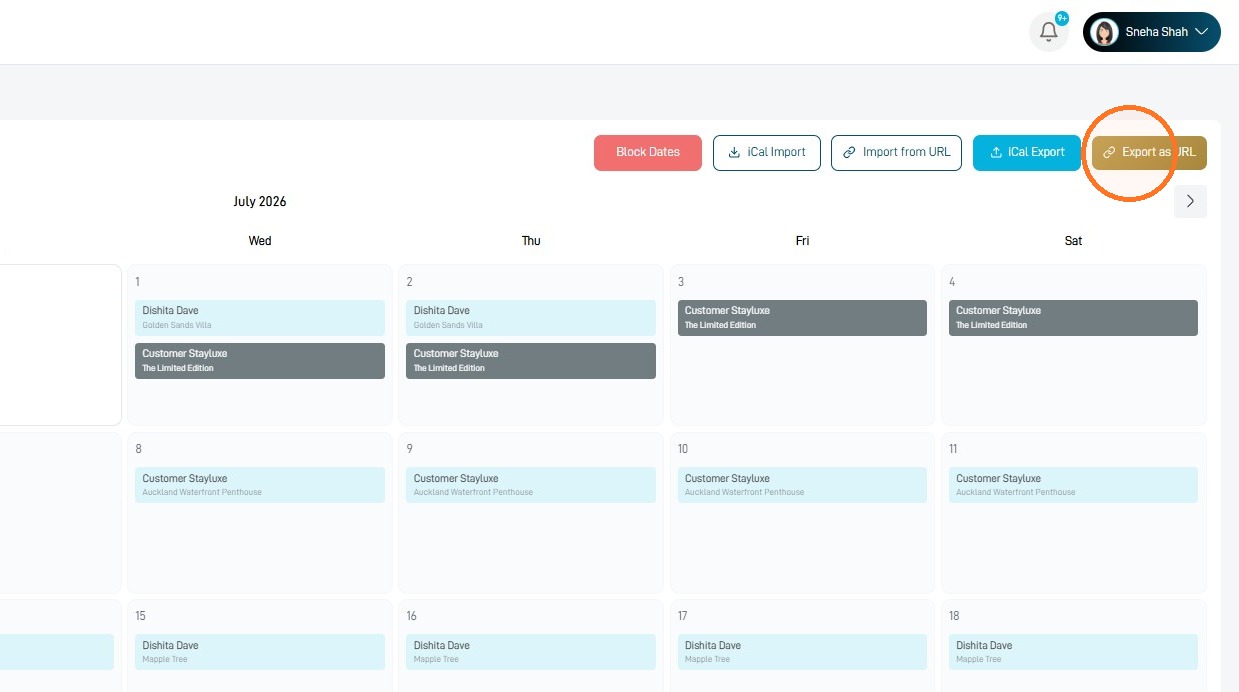
2 Select Export as URL.
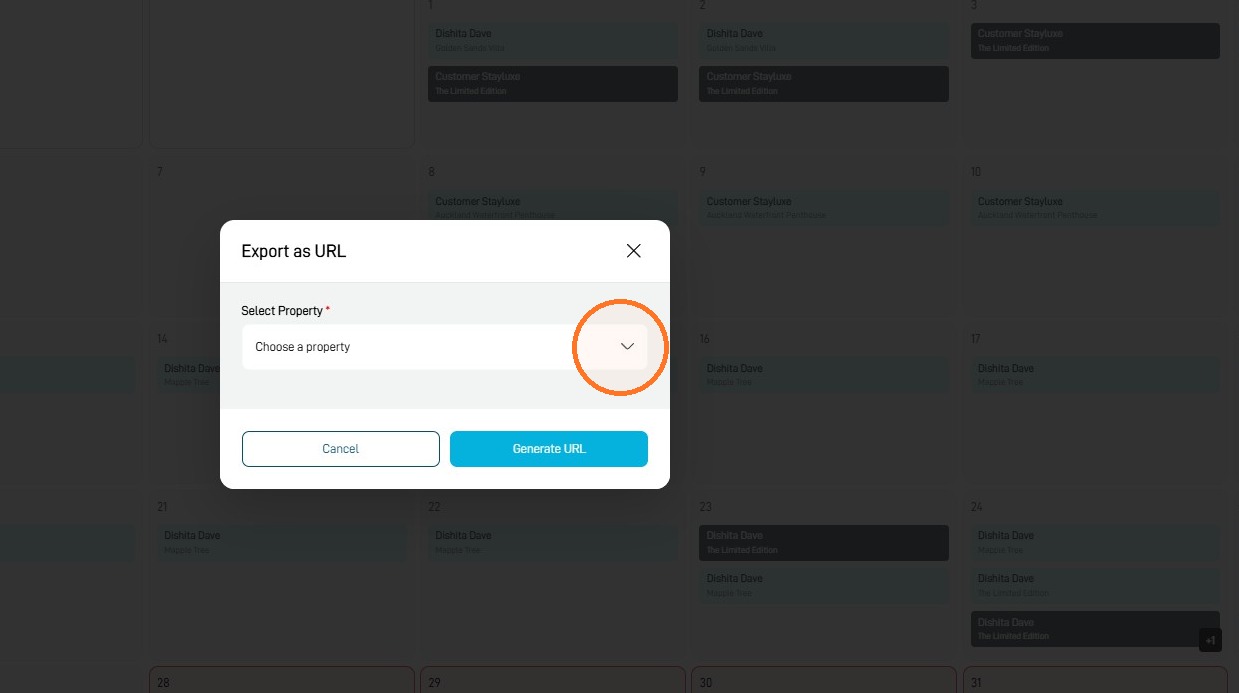
3 Select Choose a property.
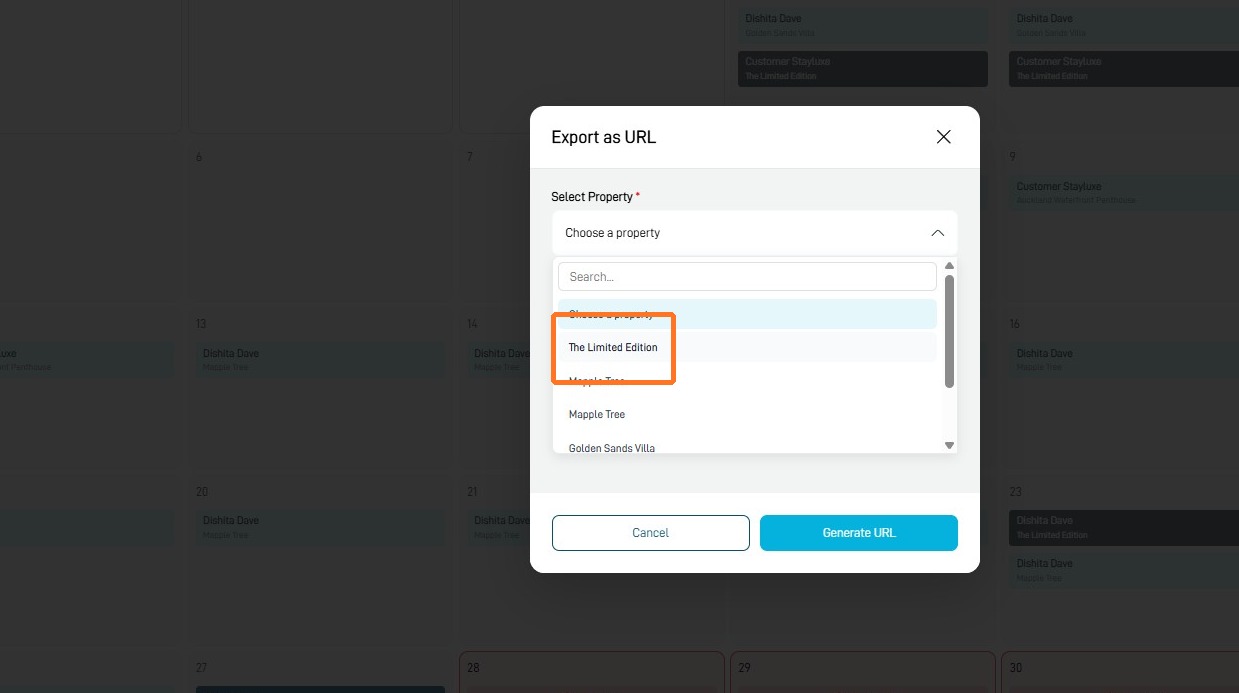
4 Choose the property whose calendar you want to export.
5 Select Generate URL.
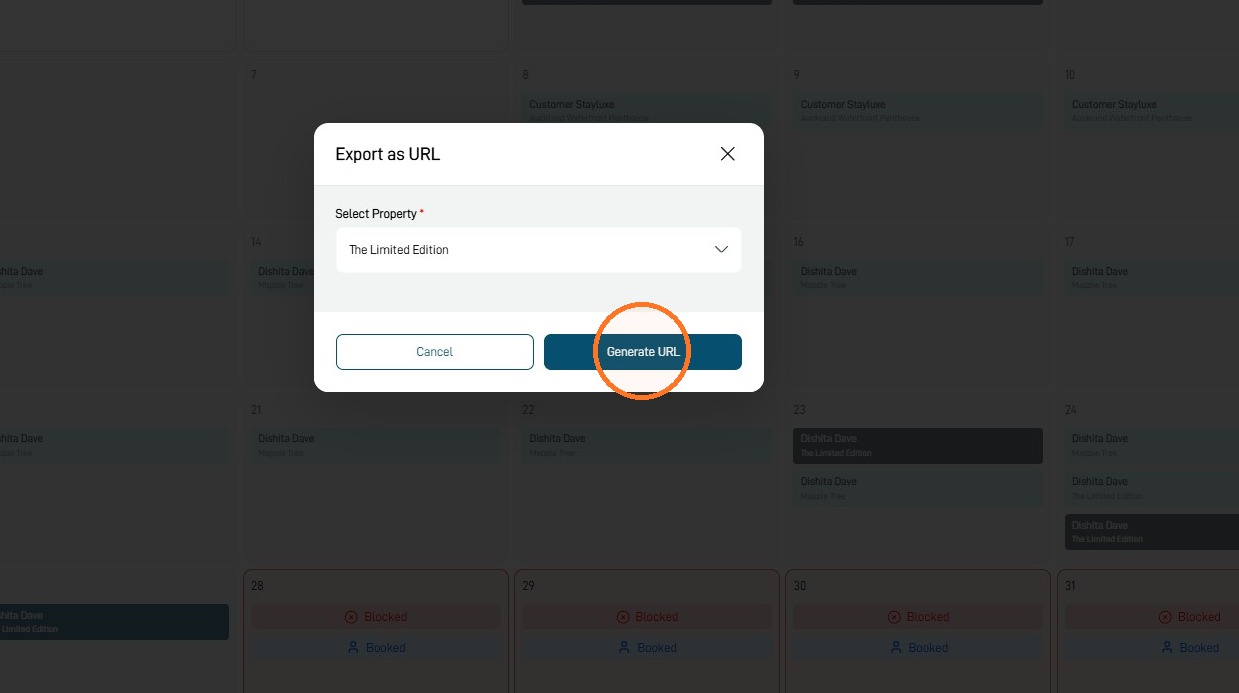
6 Select the Copy button beside the generated calendar URL.
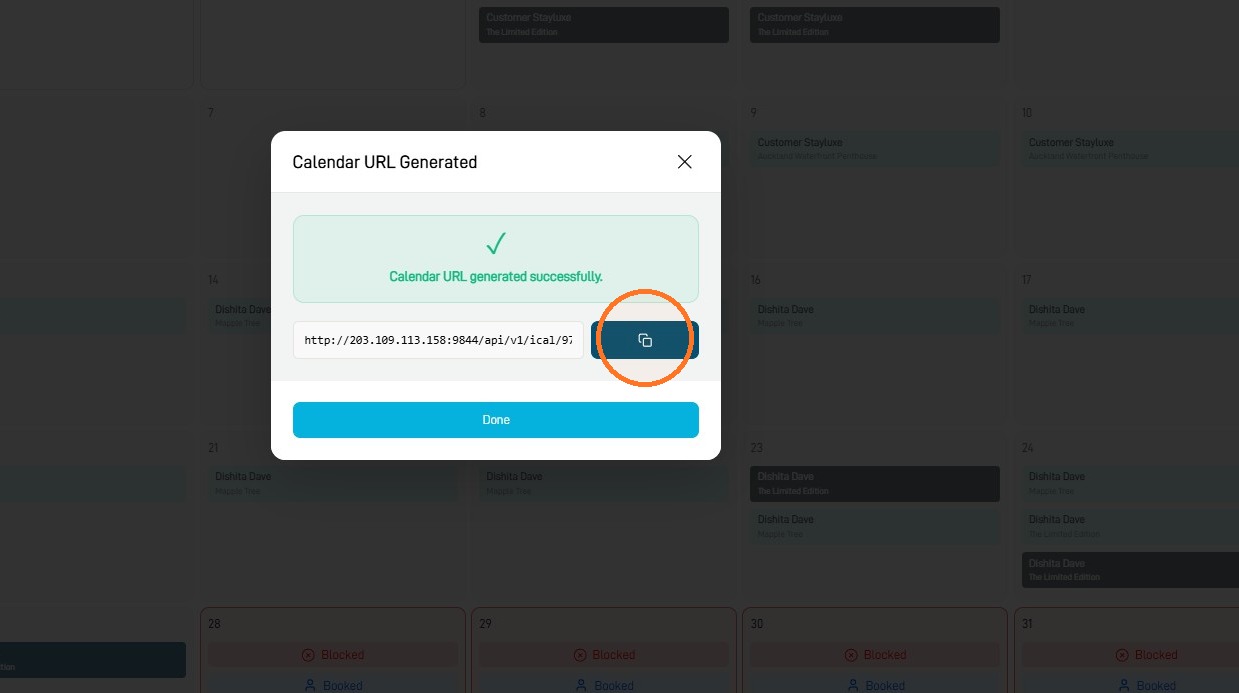
Paste this URL into the external platform where you want to sync your StayLuxe availability.
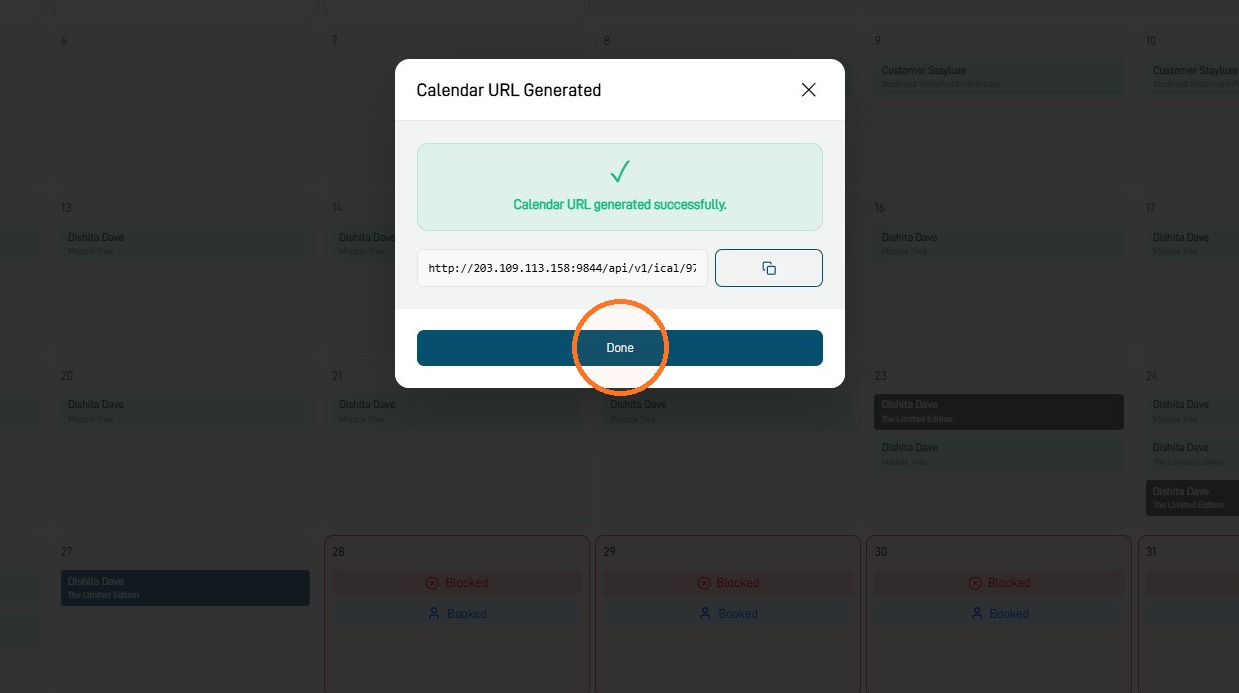
7 Select Done to close the window.
Export an iCal File (.ics)
8 Select iCal Export.
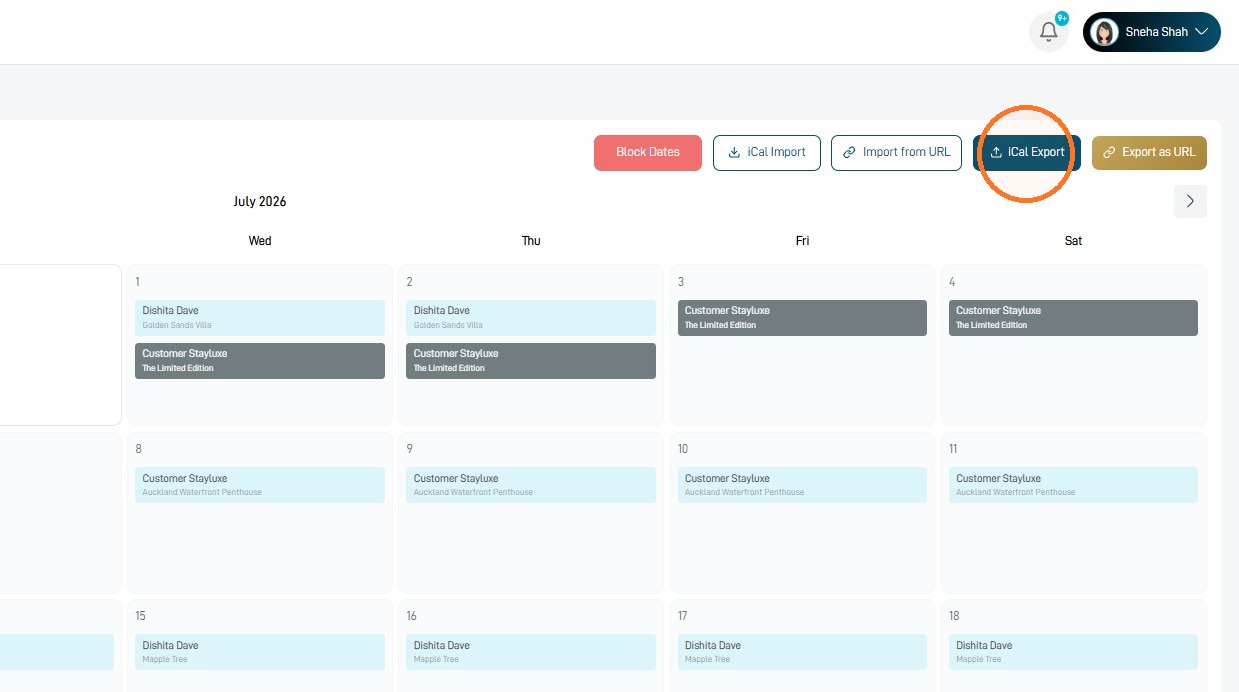
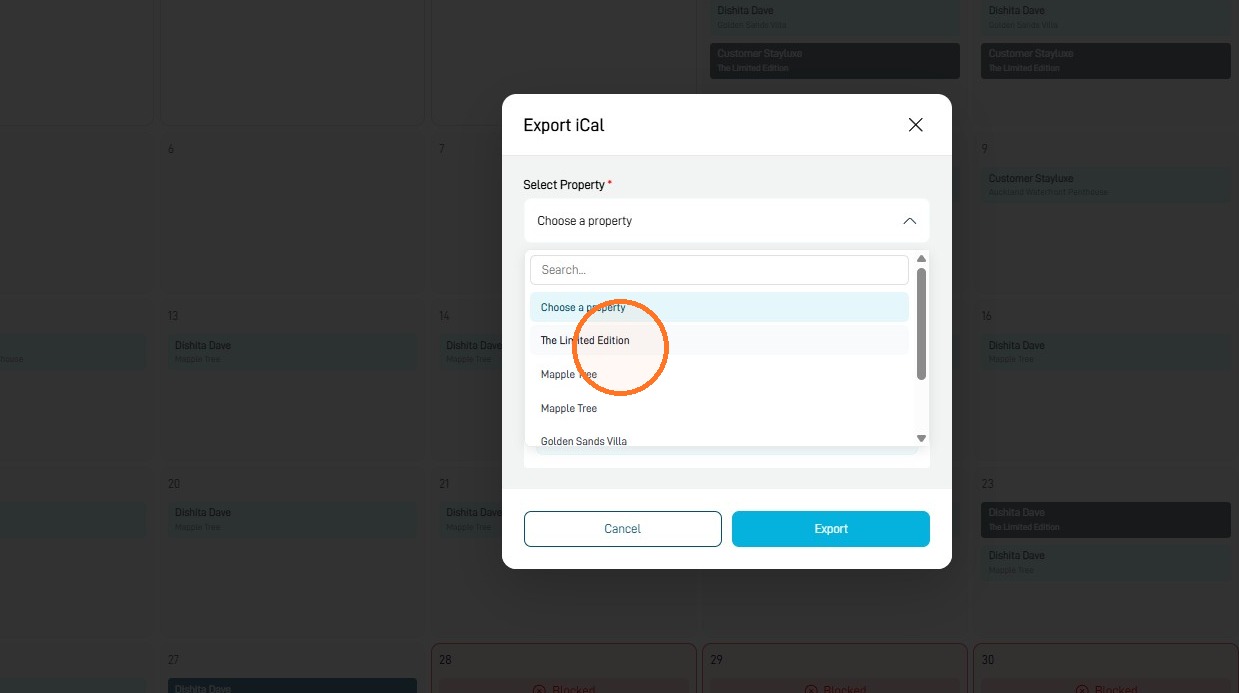
9 Select Choose a property.
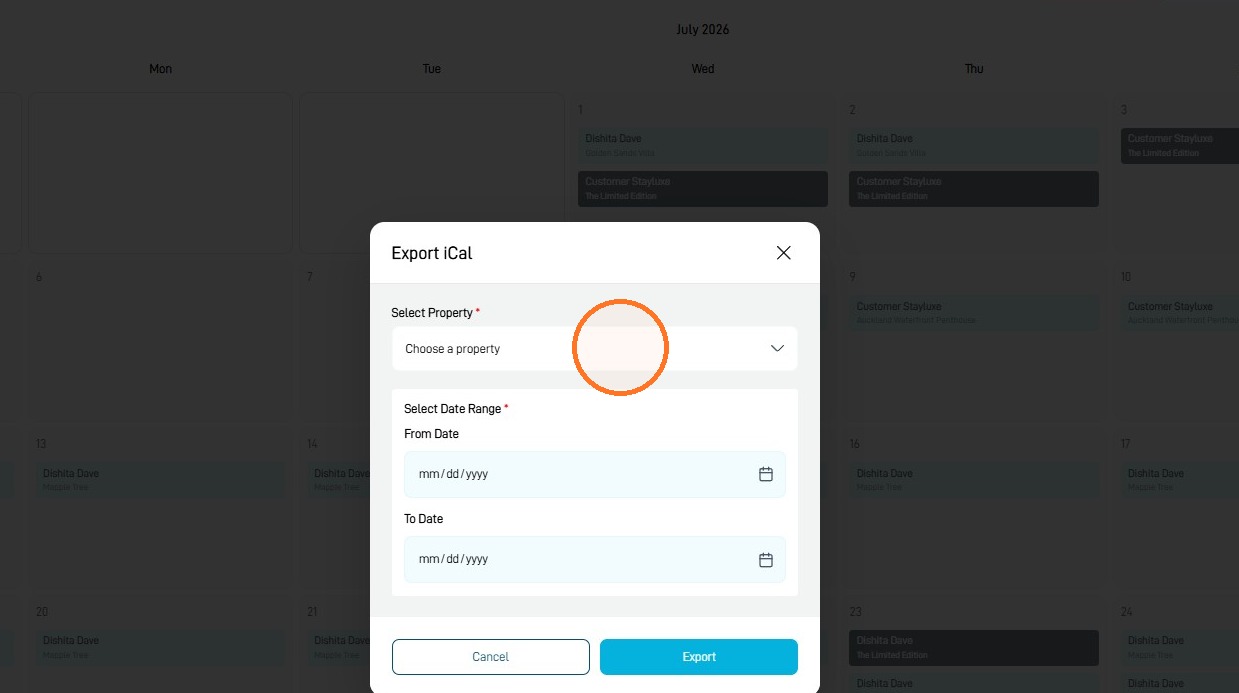
10 Choose the property whose calendar you want to export.
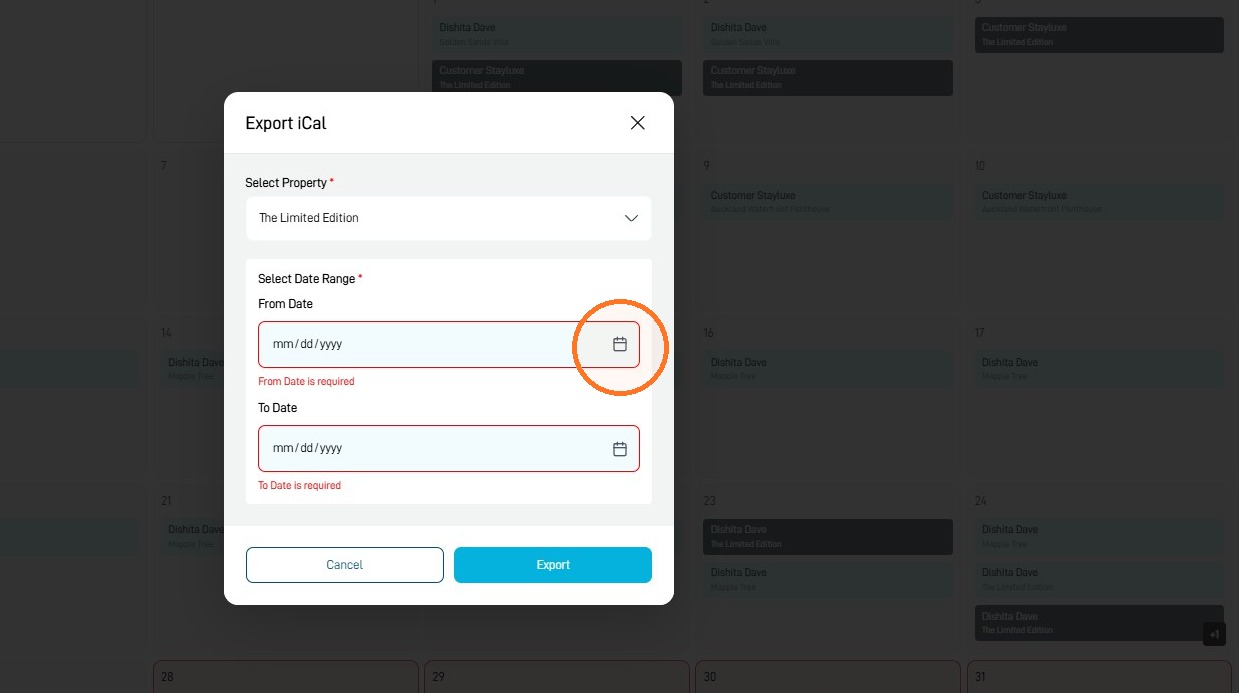
11 Select the From Date field and choose the first date to include.
12 Select the To Date field and choose the last date to include.
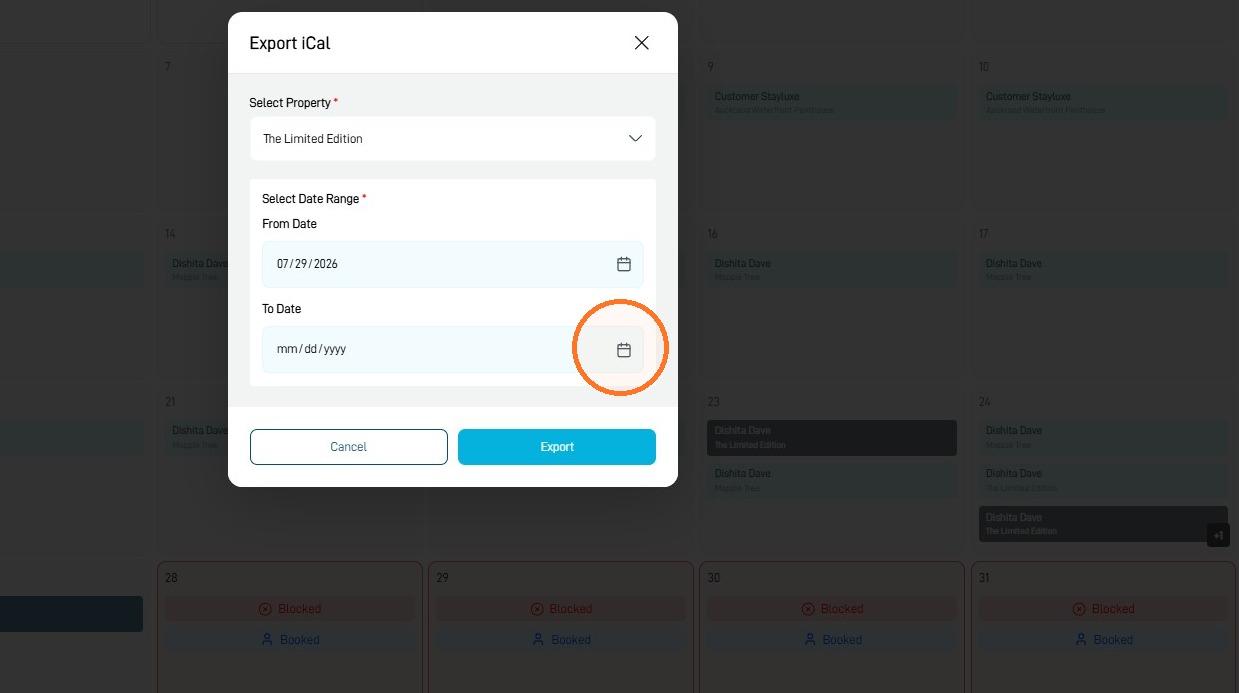
13 Select Export.
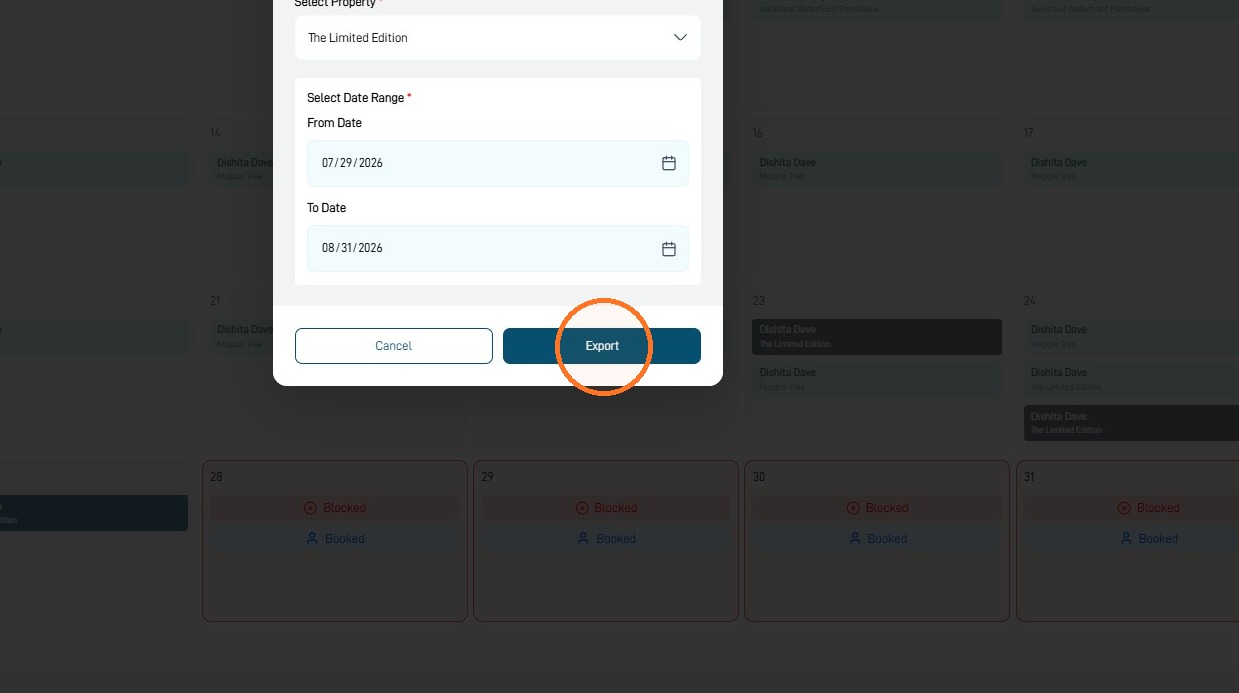
An .ics file will be downloaded to your device. You can then import it into another platform.
Good to know
Calendar sync is not instant. Sites refresh each other every few minutes to a few hours, so there can be a short delay before an exported booking shows up on your other calendars. The iCal link only shares booked and free dates, not prices or guest details.