




How to add your iCal URL to your property in Stay Luxe

Keeping your calendars in sync is simple with Stay Luxe. Using calendar links, your availability can flow both ways: you can pull in calendars from the other platforms where your property is listed, and share your Stay Luxe calendar out to those platforms too.
This guide covers the importing side, bringing other platforms’ calendars into Stay Luxe. It’s mostly a copy-and-paste job: grab the calendar link from each site your listing appears on and add it to your Stay Luxe account. Below, you’ll find where to locate that link on the most common booking platforms, along with step-by-step instructions.
Prefer to send your Stay Luxe calendar out instead? See our guide on exporting your Stay Luxe calendar link here.
How to Import your Ical link into Stay Luxe platform:
1 Go to the StayLuxe host dashboard.
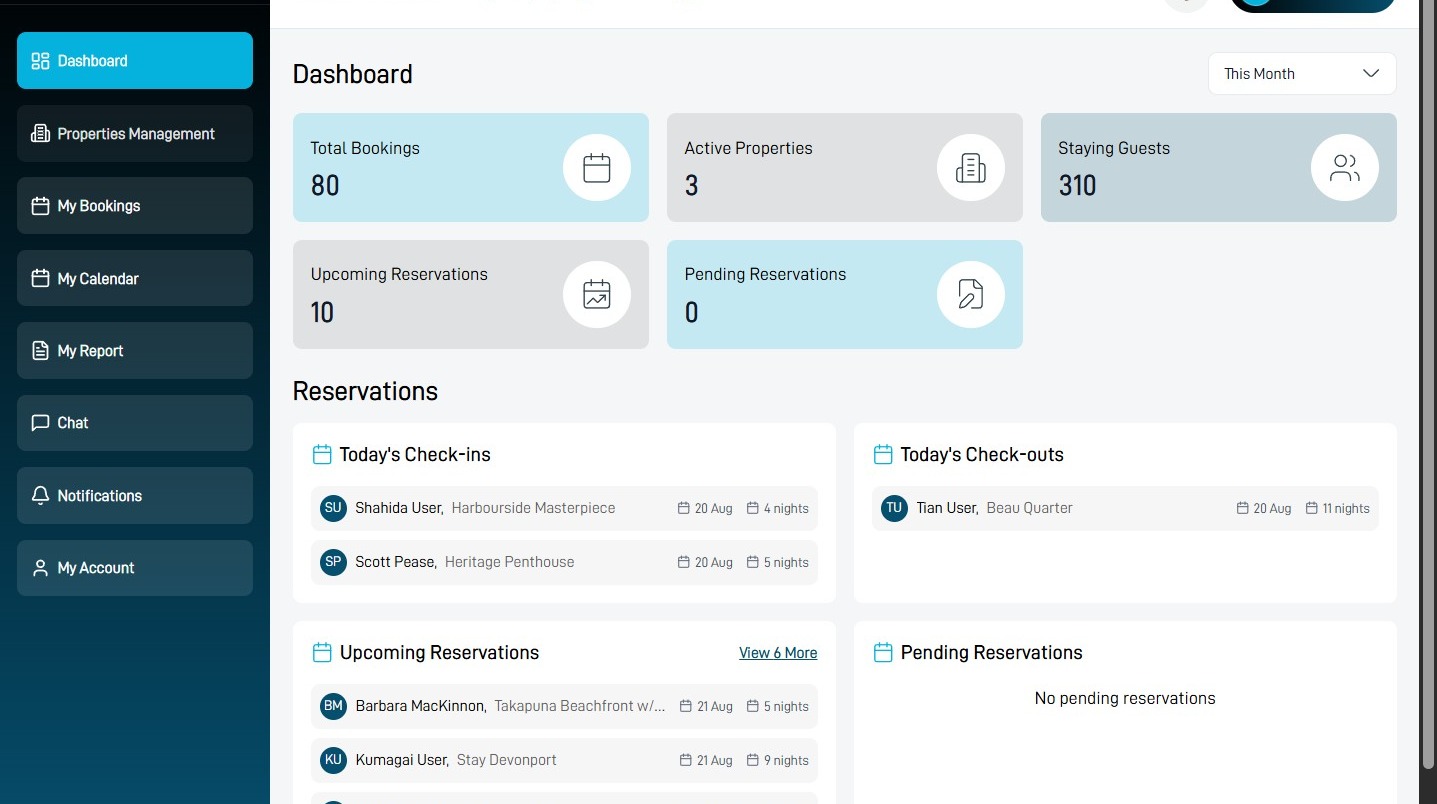
Open the property
2 Select Properties Management.
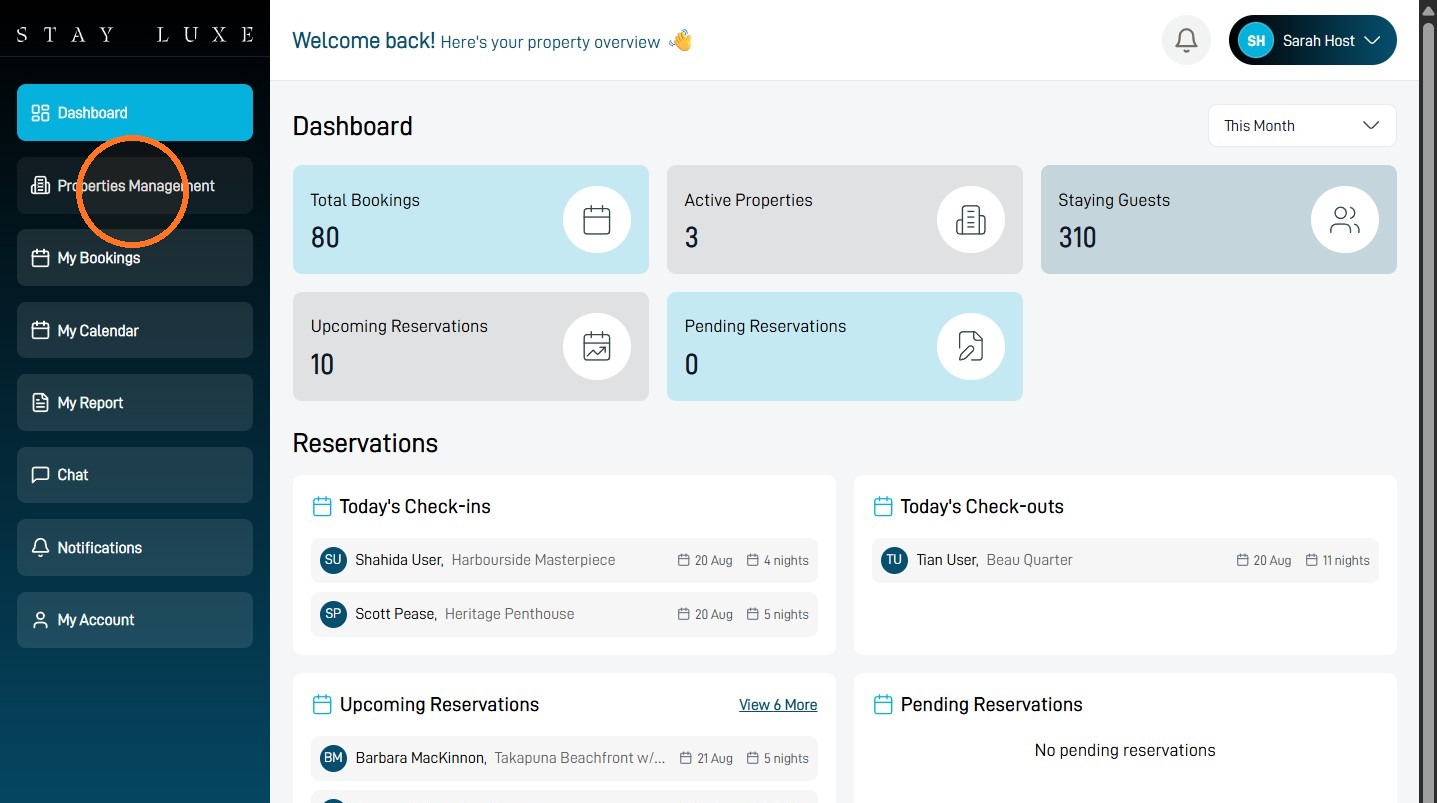
3 Choose the property whose calendar you want to import.
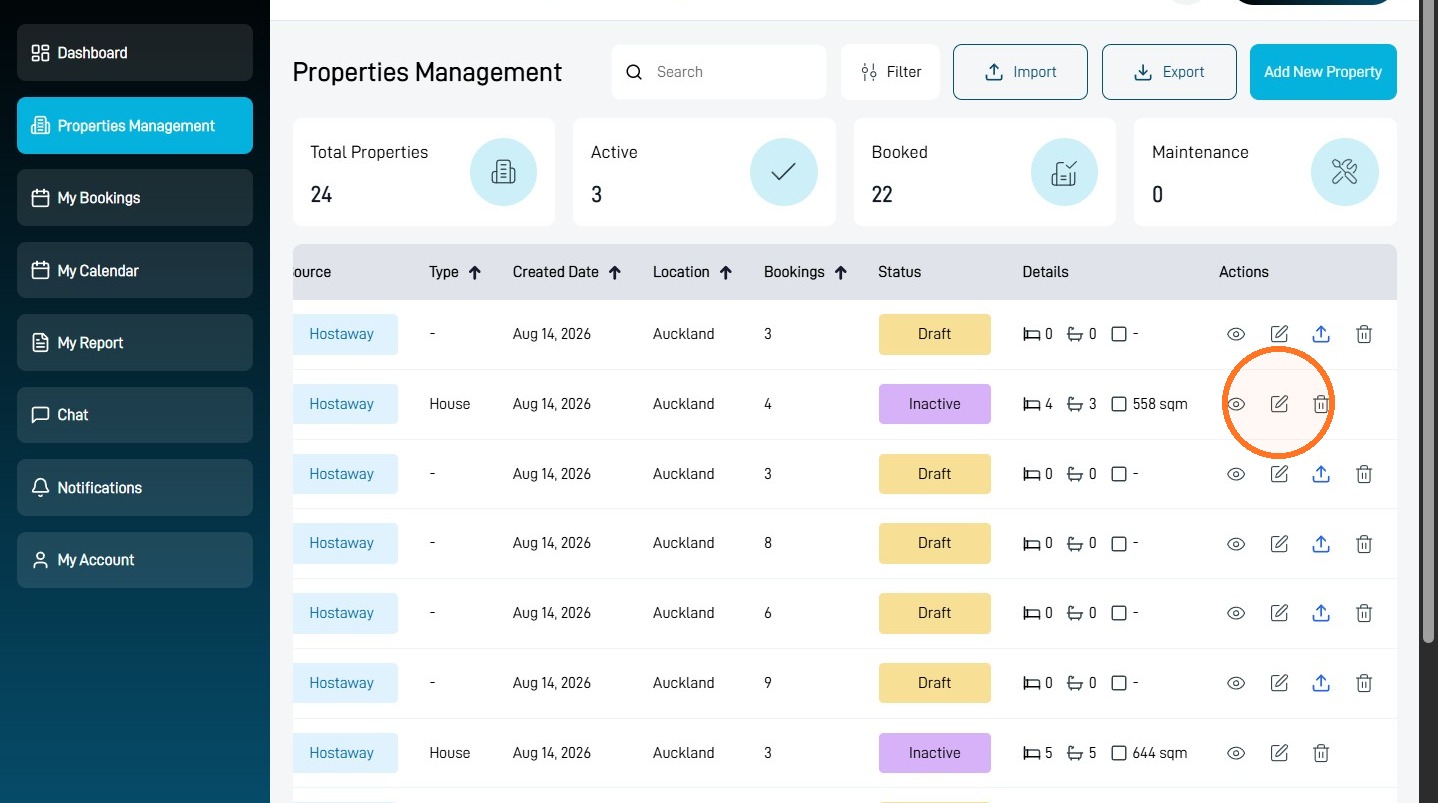
Open the calendar
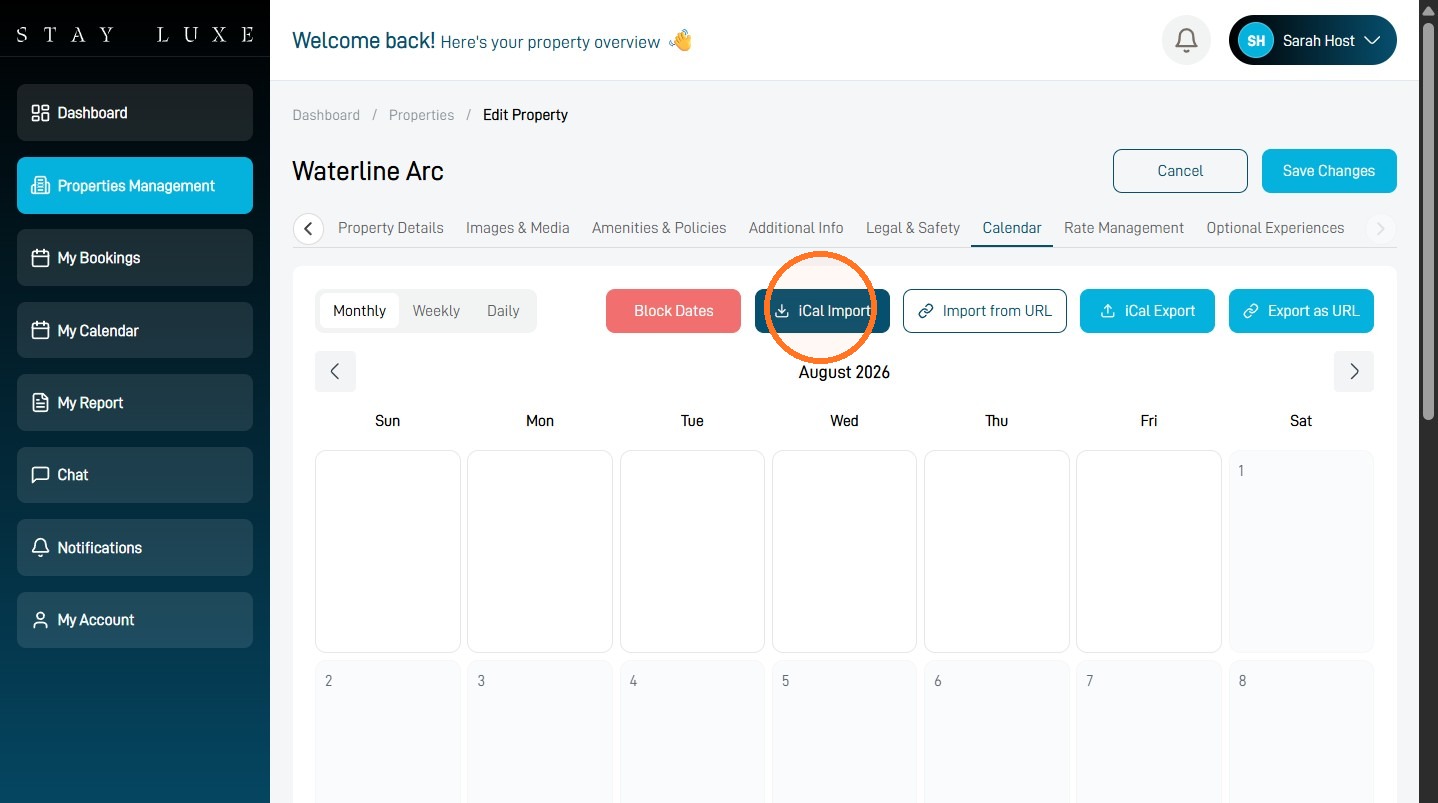
4 Select Calendar.
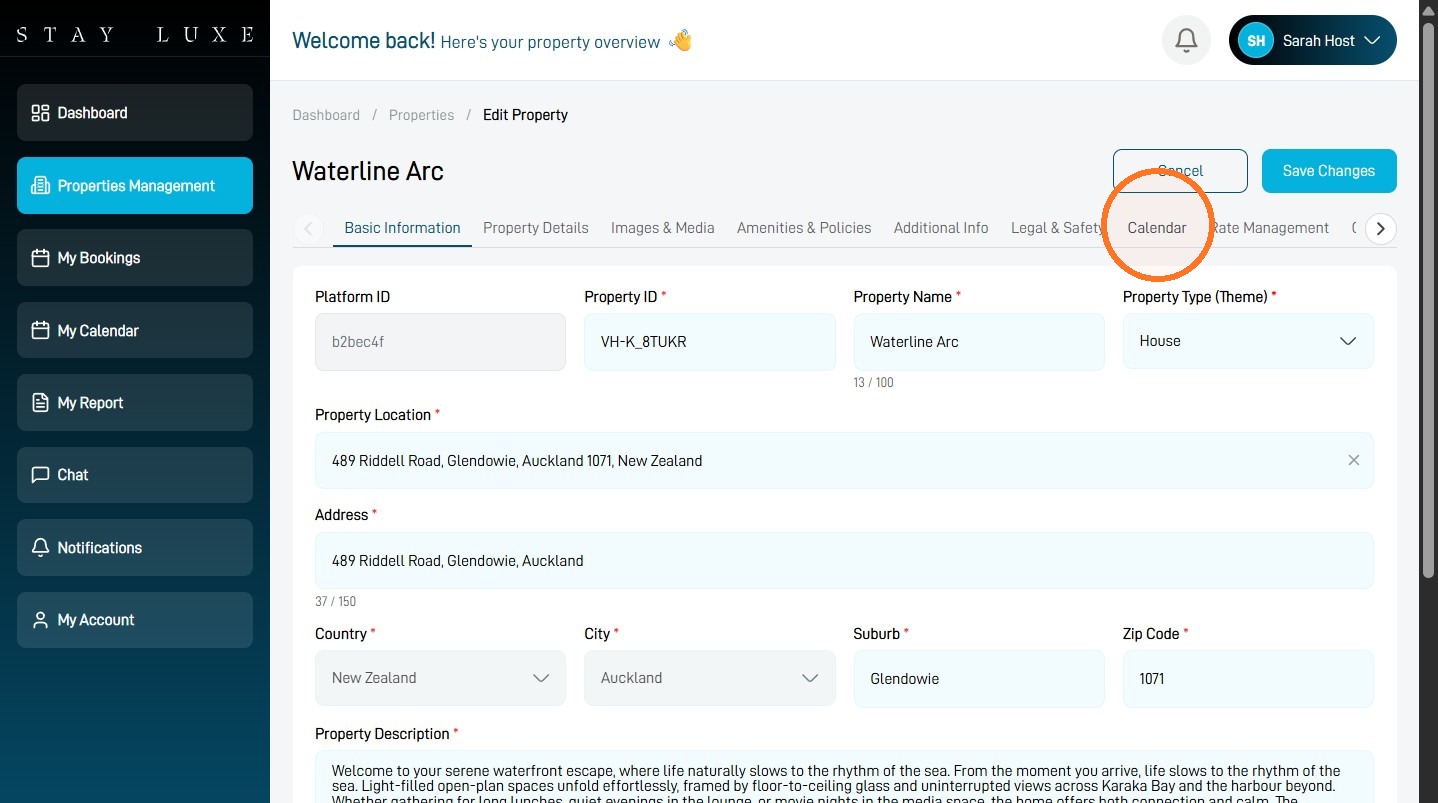
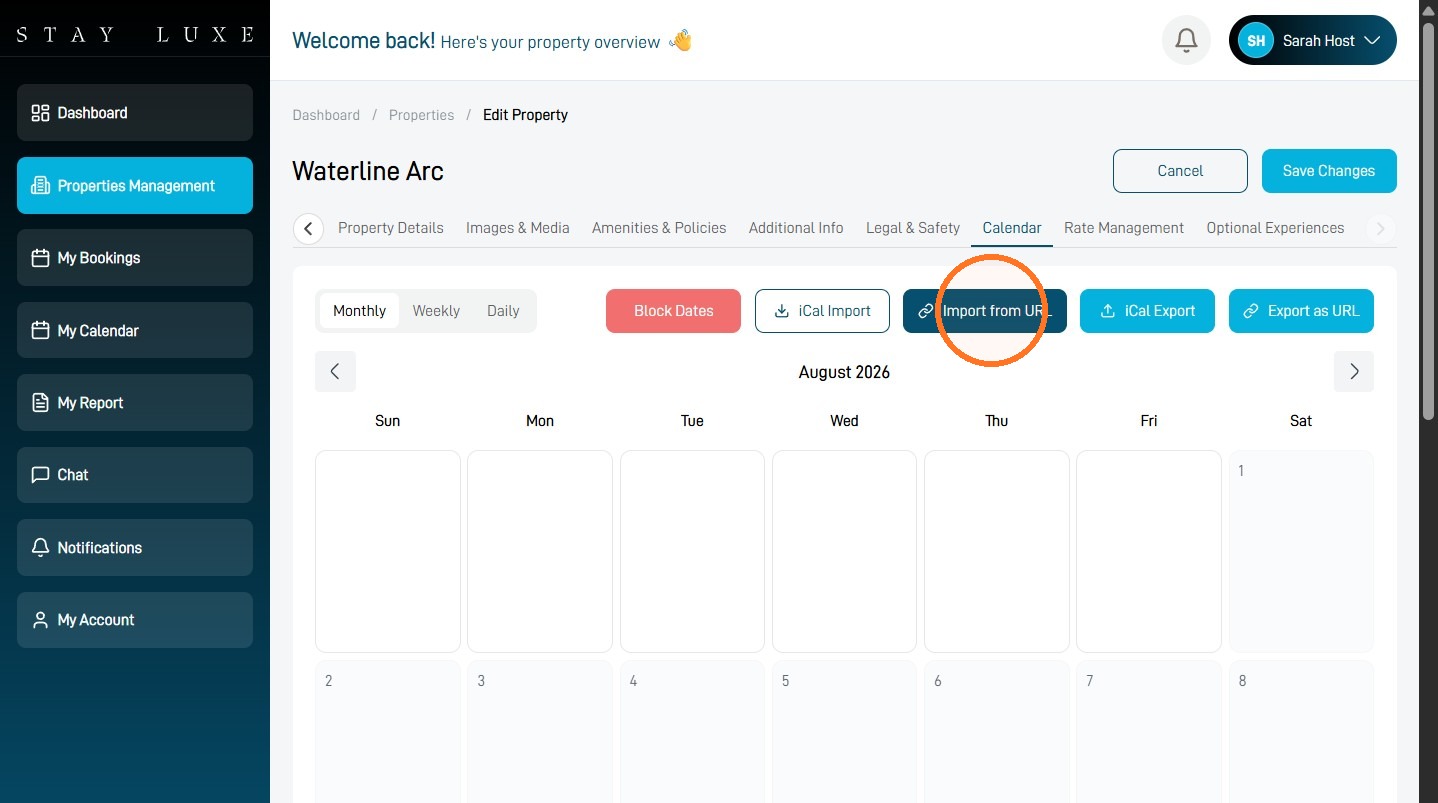
Import and sync from an iCal URL
5 Select Import from URL.
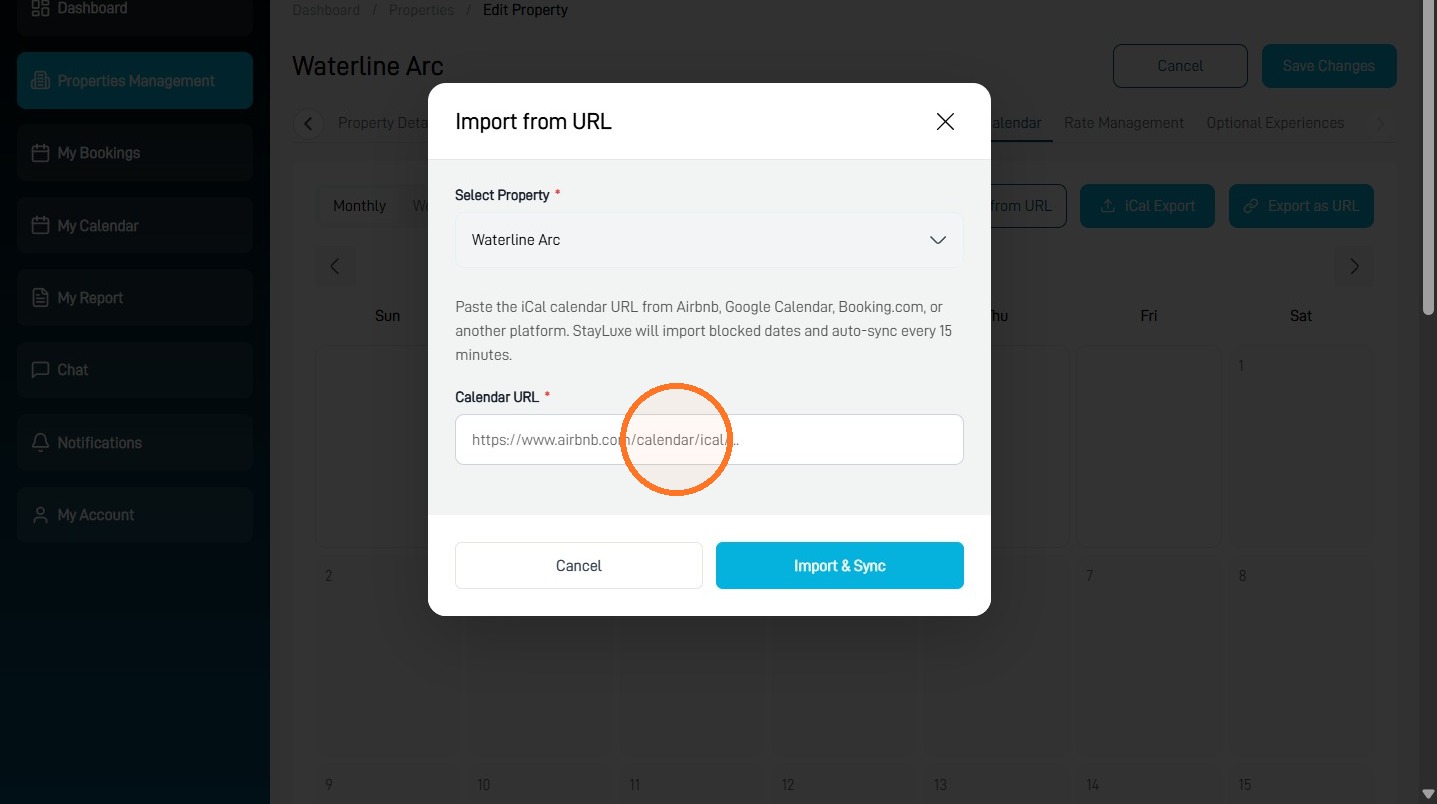
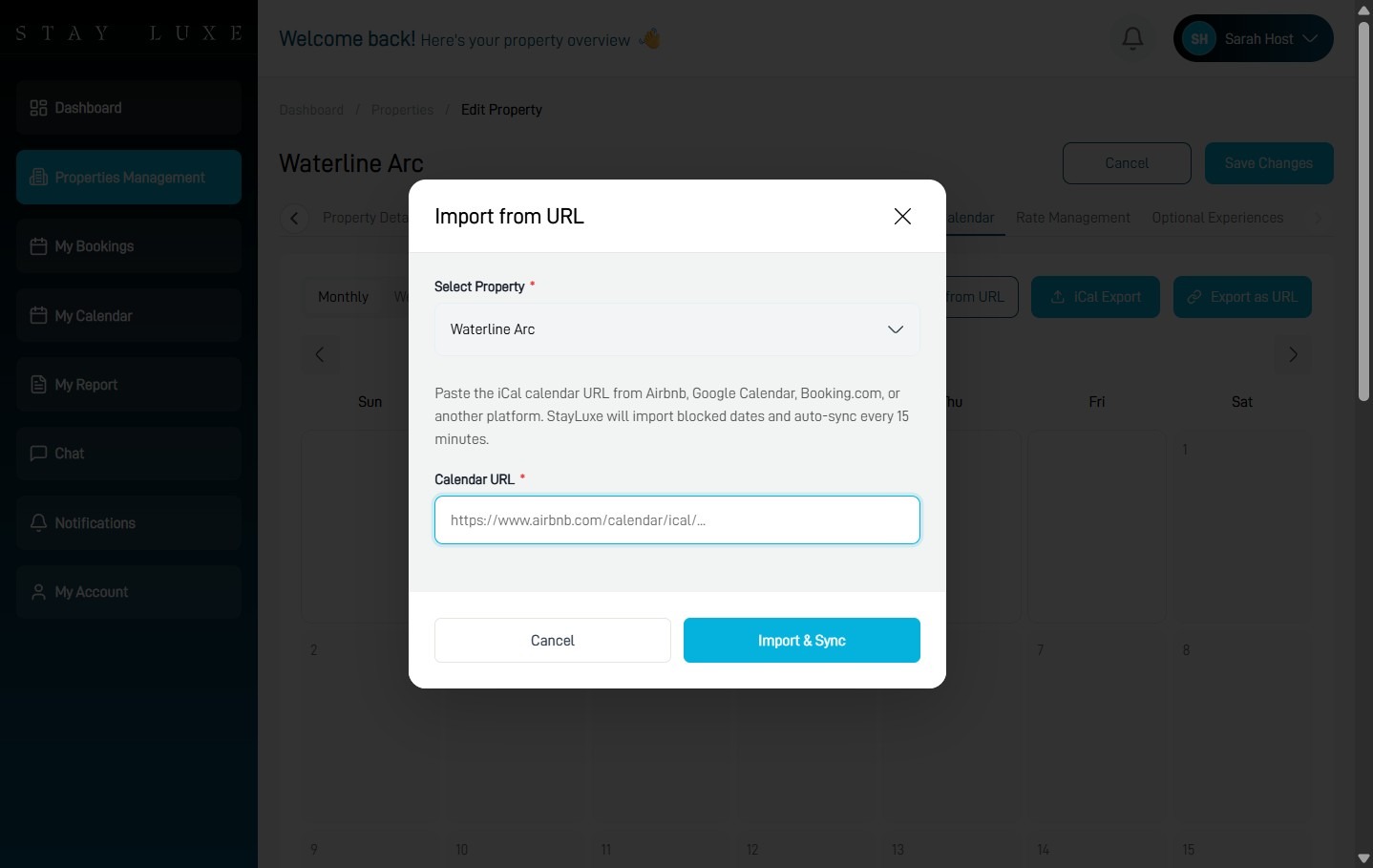
6 Paste the external iCal link into the Calendar URL field.
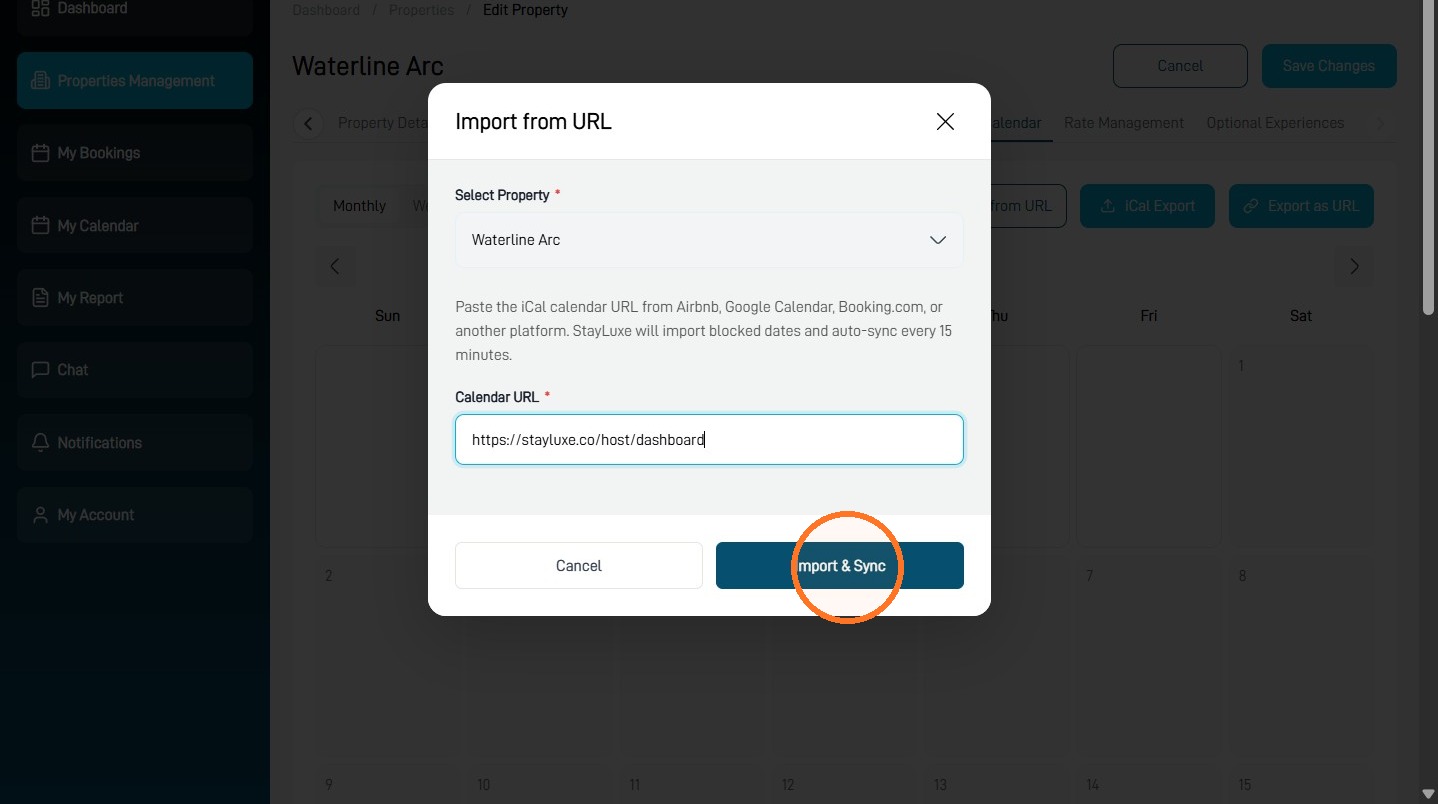
7 Select Import & Sync.
Import an iCal file (.ics)
8 To import an iCal file instead of a URL, select iCal Import and upload your .ics file.
Your imported calendar will appear in StayLuxe after the import is completed.