




Updating your Pricing and Availability

Keeping your prices and calendar accurate
Why is this important?
Accurate prices and calendars mean our sales team can propose your home to high-value guests with confidence, and you avoid double bookings, which means fewer cancellations and more of your revenue secured.
Keeping your availability and pricing accurate also means less back and forth with our sales team, so you can convert bookings faster.
Offering a lower minimum night stay means your home shows up in more search results, ranks higher, and secures more bookings overall.
How to update your prices manually
Updating your base rate:
- Log in to your Stay Luxe host dashboard.
- Go to Property Management.
- Find the listing you want to amend.
- Click Manage, then Edit pricing, then Rates and fees.
- Enter your chosen rates for mid-week and weekends.
- Save your changes at the top of the page.
Note: The price you enter is before the Stay Luxe platform fee is deducted, so factor this into the rate you add.
To boost underperforming periods with member discount, weekly discount and monthly discount:
- Select each field and update the number to your preference:
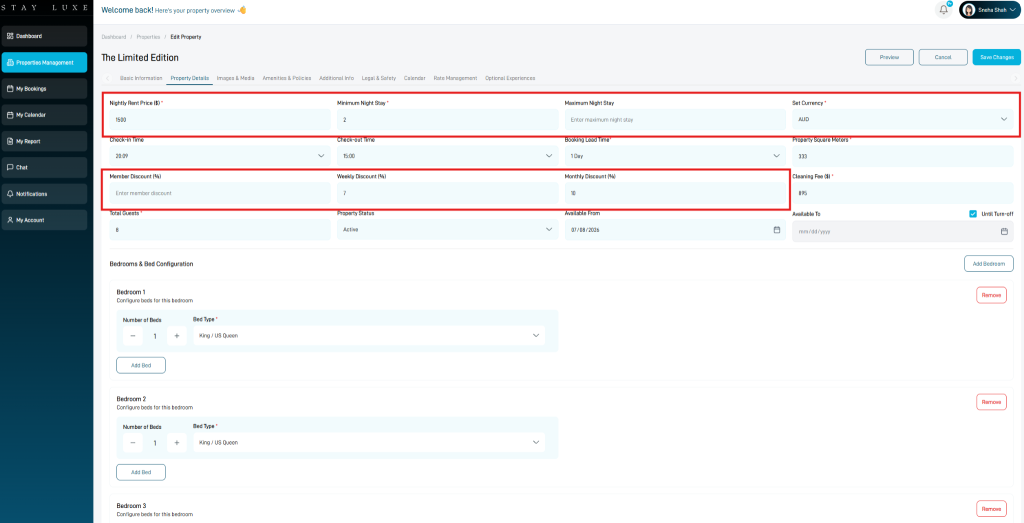
Note: if you already sync your rates via a channel manager or PMS, discounts added on your Stay Luxe dashboard are applied on top of any existing promotions you sync.
How to update your availability calendar
Displaying accurate availability 12 months in advance is crucial. It ensures you get visibility with the right guests, avoids double bookings, and lets our sales team confidently propose your home to guests.
- Log in to your Stay Luxe dashboard click here.
- Go to Property Management.
- Find the listing to update.
- Click Manage
 , then Calendar.
 - To block specific days so they are not bookable, click on Block dates
- Choose date, type in a reason, then Save.
To encourage more bookings in low or mid-season, apply a custom price on your calendar or visit here:
- Log in to your Stay Luxe dashboard.
- Go to Listings.
- Find the listing to update.
- Click Manage , then Property Details.
- Enter the base price you want, along with the minimum and maximum number of nights.
- Click Save.
1 Go to the StayLuxe host dashboard.
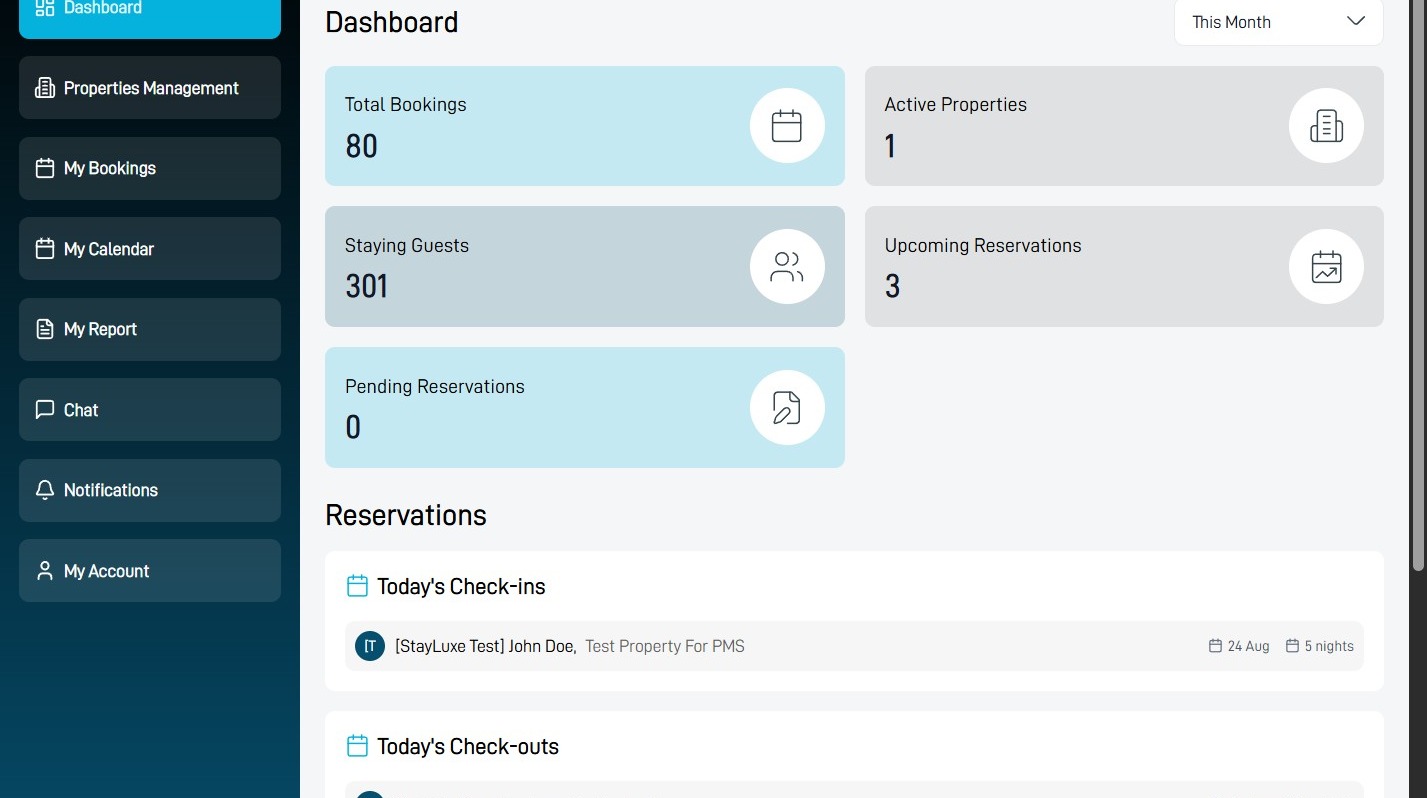
Property Management
2 Select Properties Management.
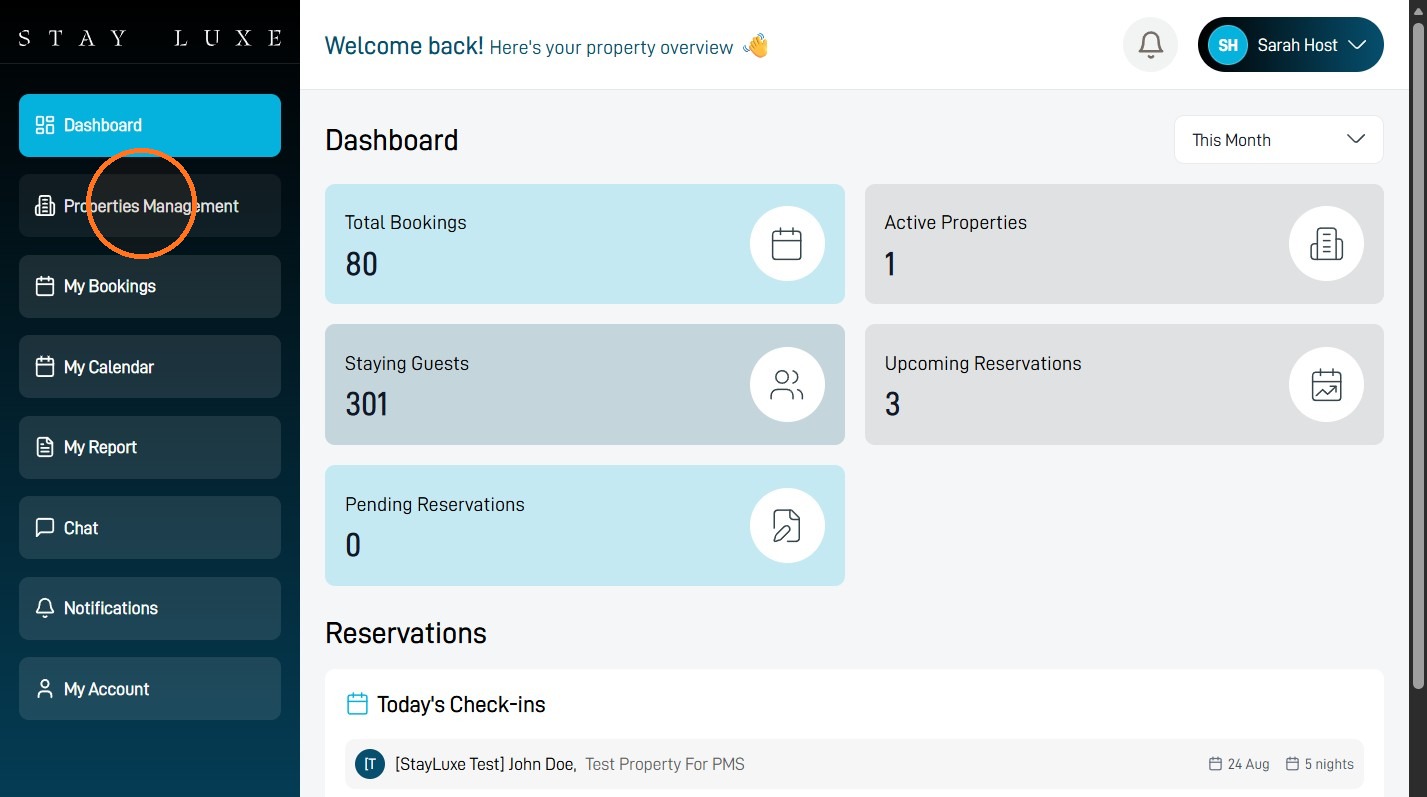
3 Select the edit icon beside the property where you want to add a custom rate.
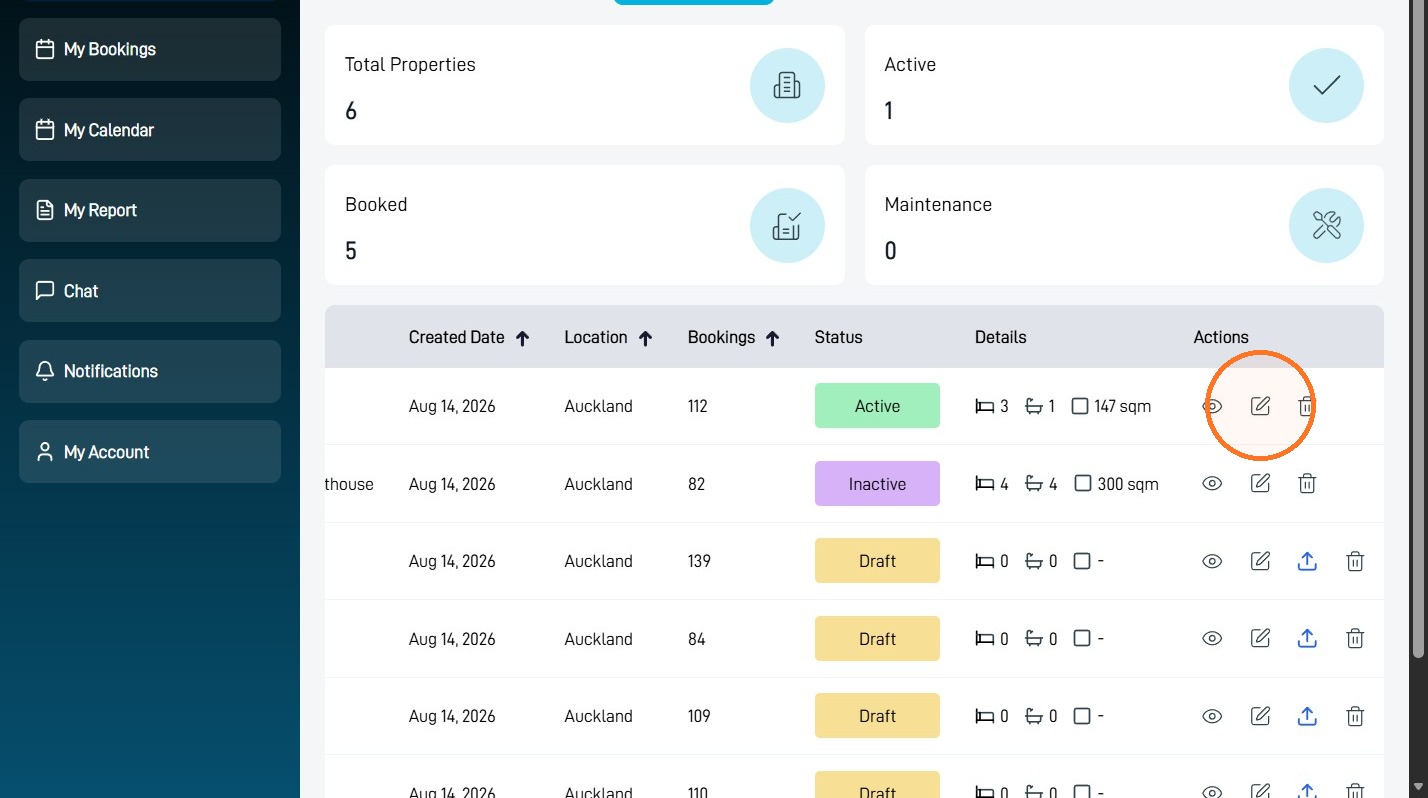
Rate Configuration
4 Select Rate Management.
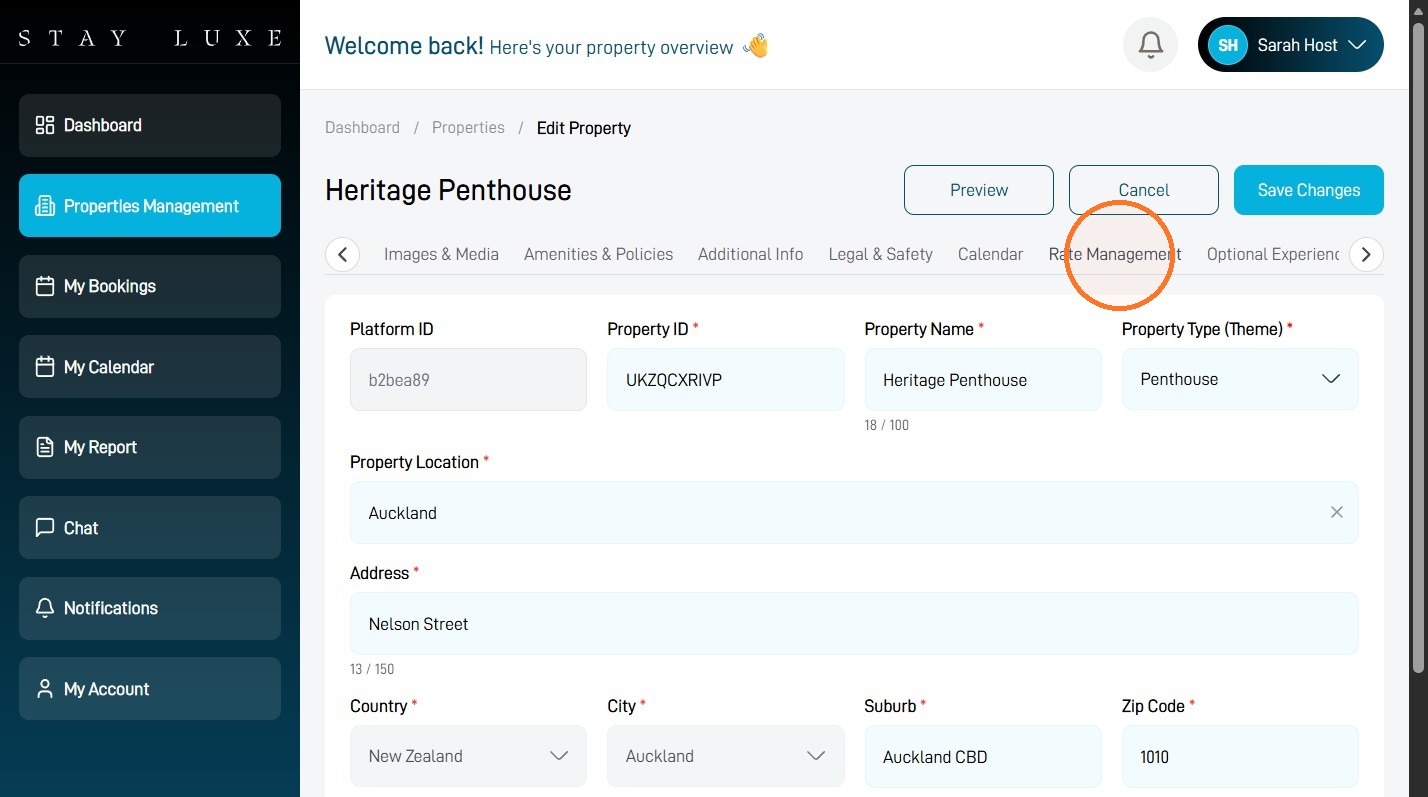
5 Select Add New Custom Rate.
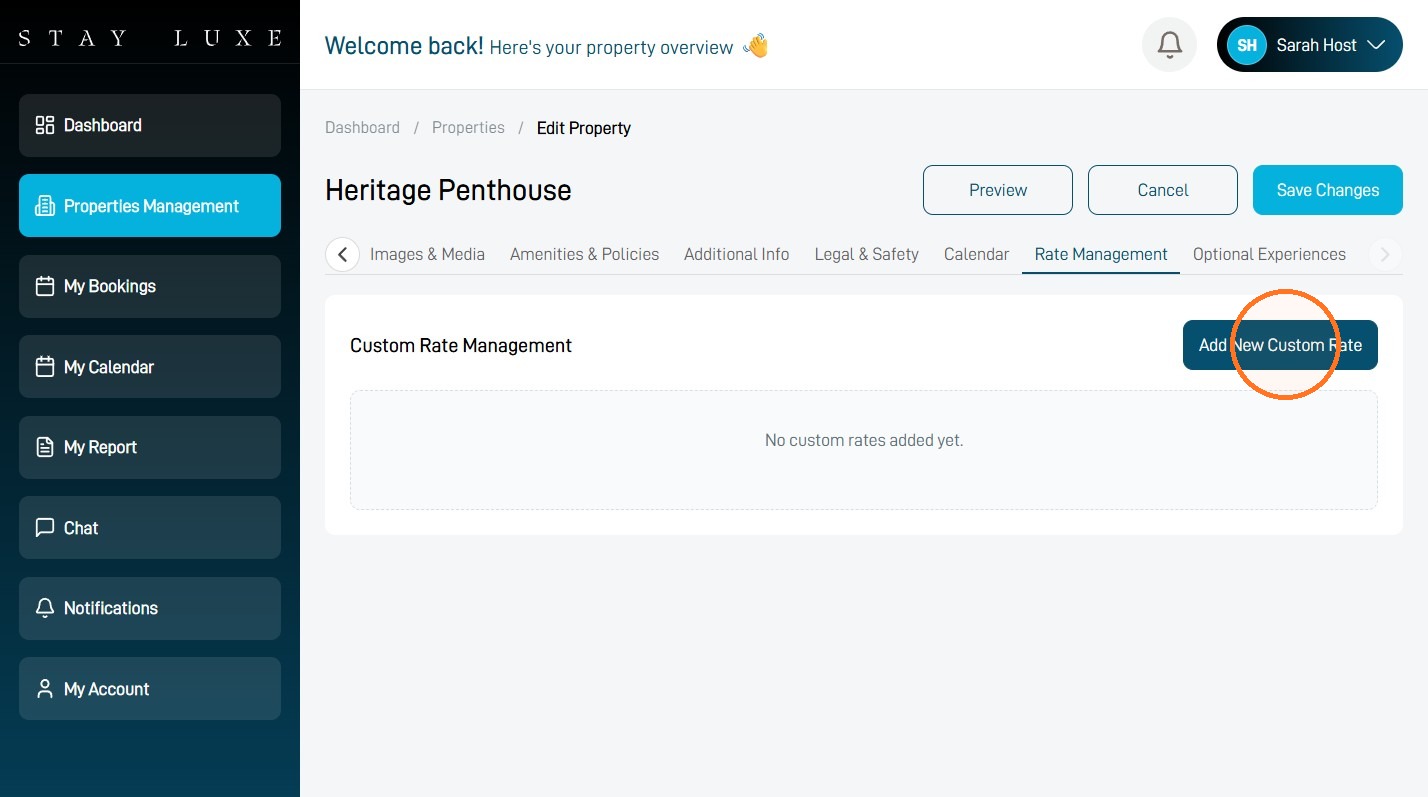
Custom Rate Details
6 Select the Start Date field and choose the first date for the custom rate.
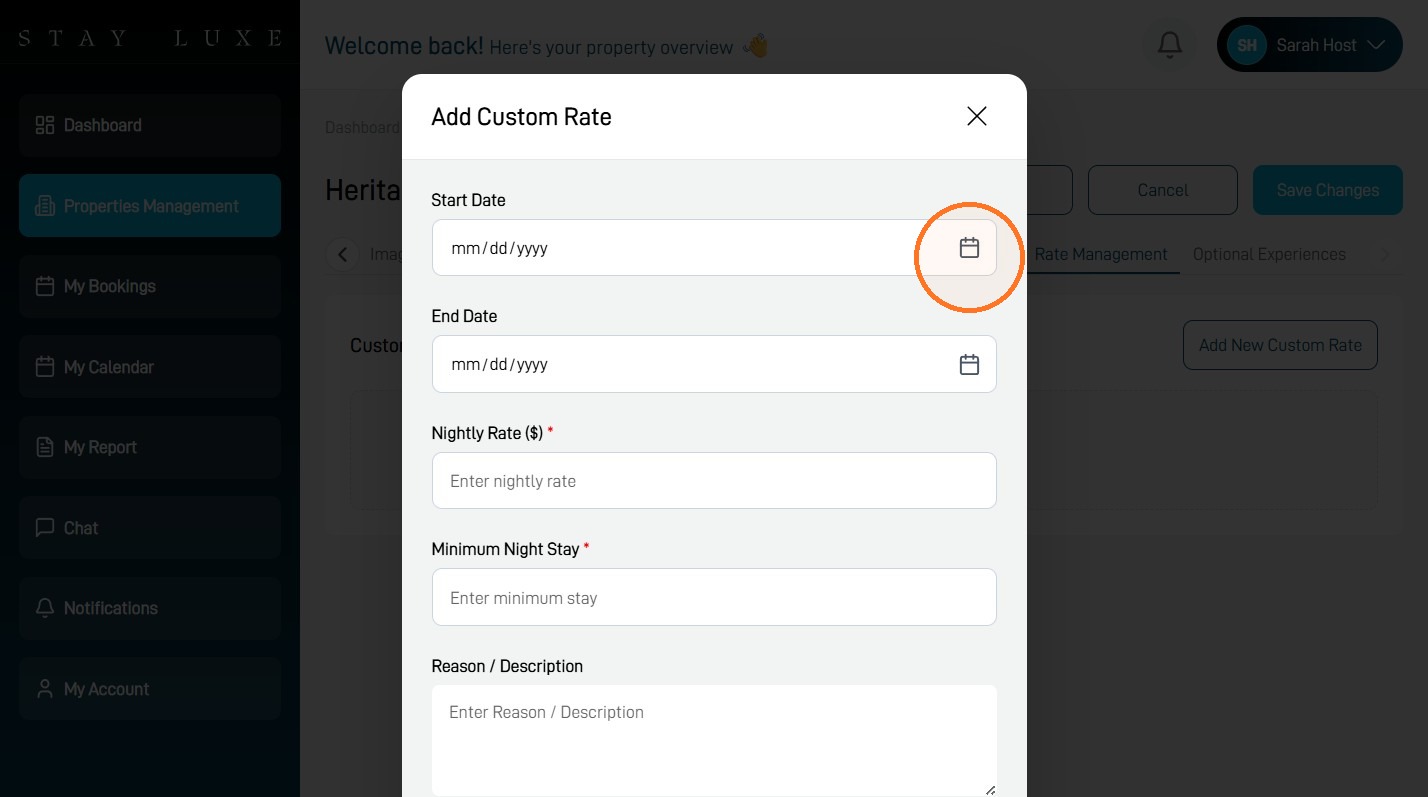
7 Select the End Date field and choose the last date for the custom rate.
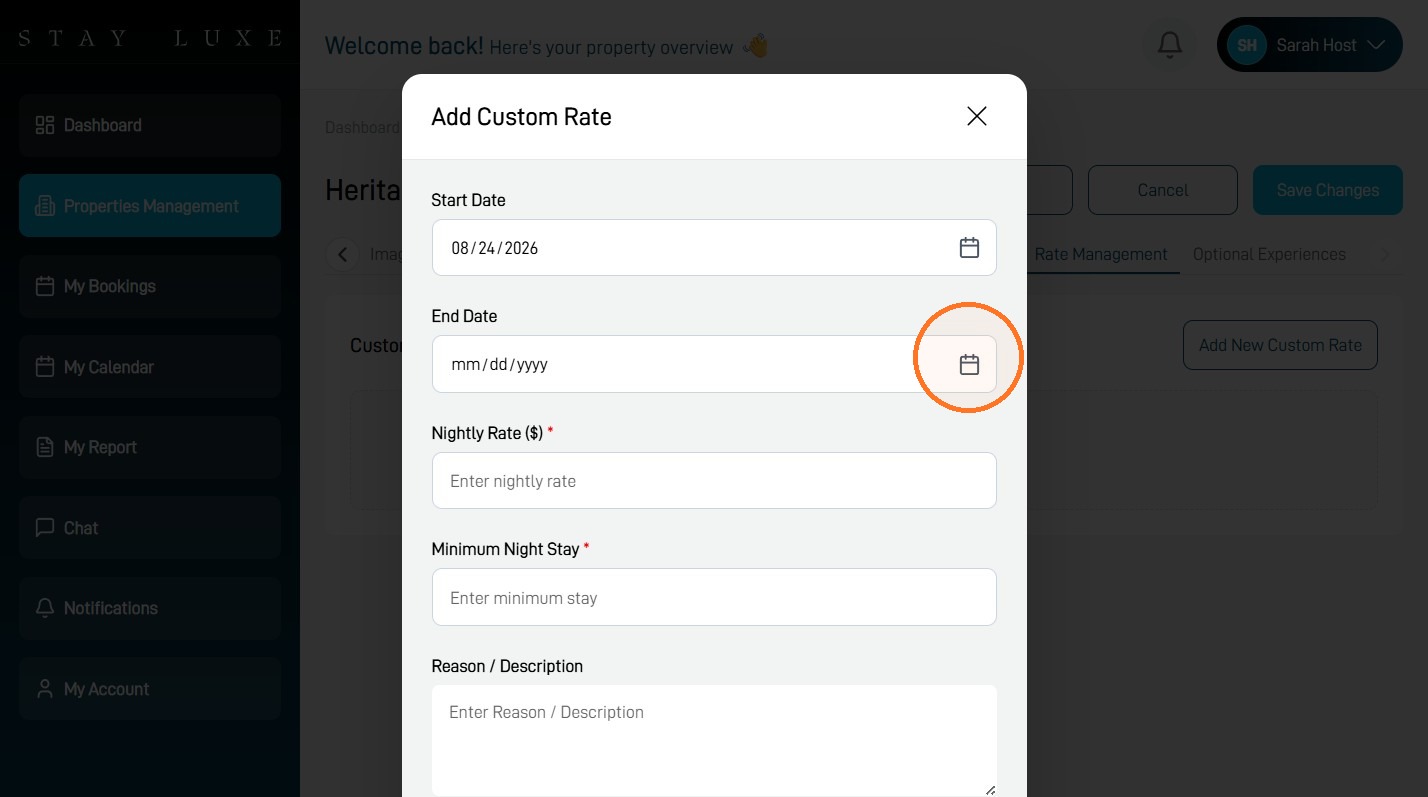
8 Select the Nightly Rate ($) field.
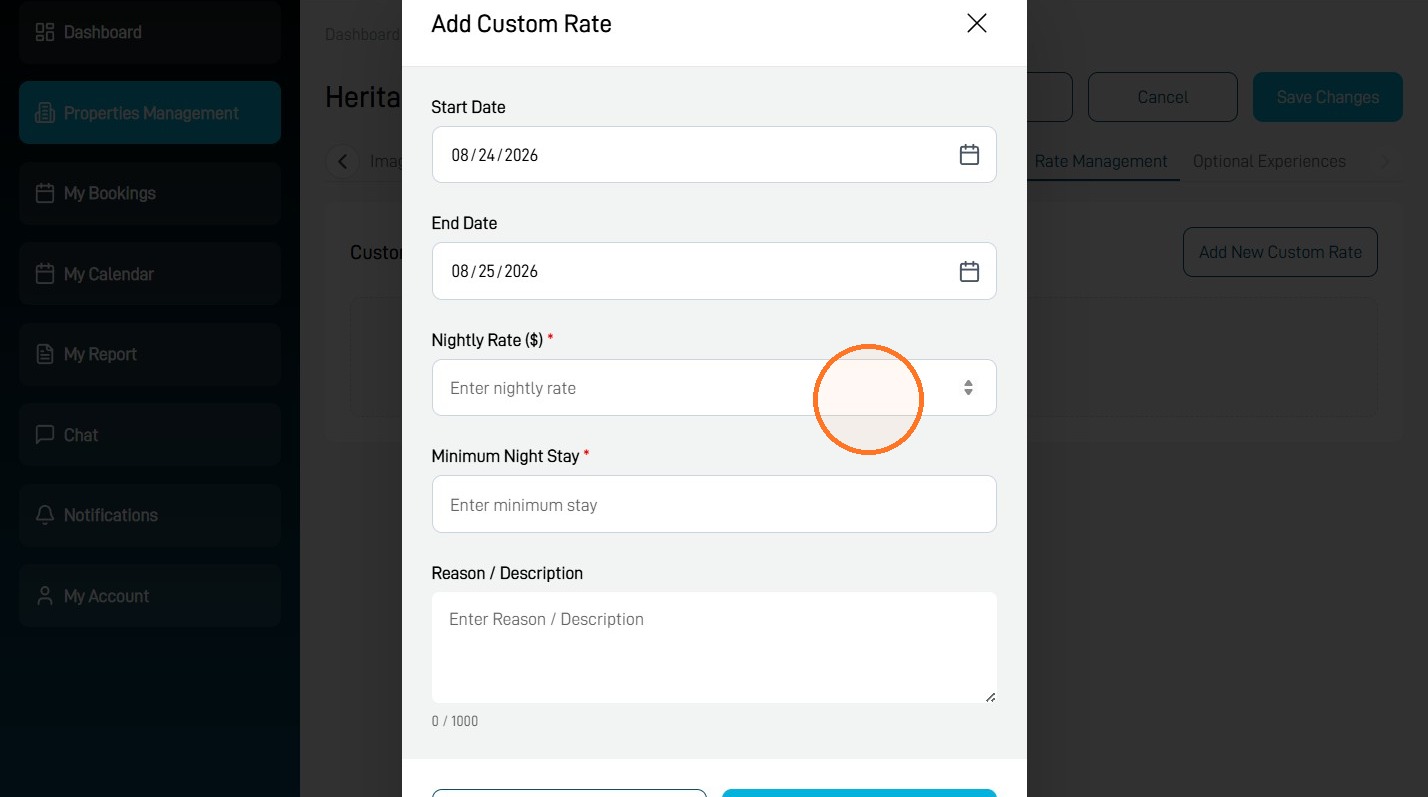
9 Enter your desired nightly rate, set the minimum stay and add a reason or description.
The custom minimum stay can override your property’s standard minimum stay, but it cannot override the property’s maximum-stay limit.
10 Select Add Rate to save the custom pricing.
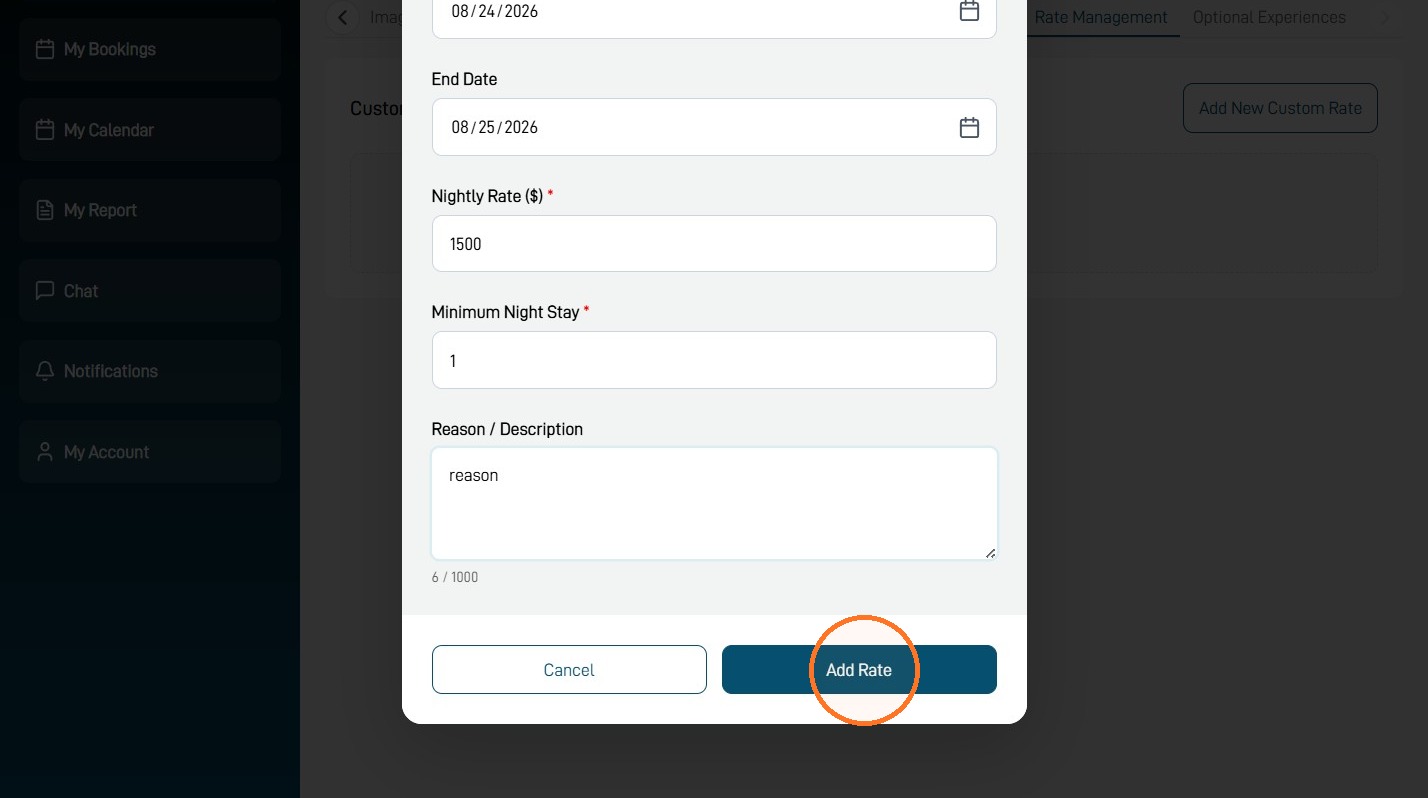
Your custom rate will apply to the selected date range after it has been saved.