




How to create a listing on Stay Luxe?

Follow these steps to create and submit a new property listing on StayLuxe.
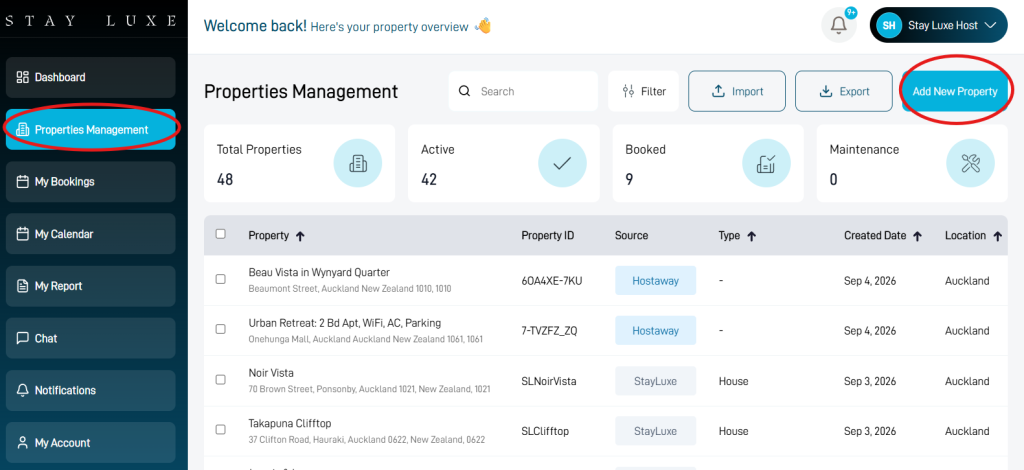
Step 1: Basic Information
Complete the basic information about your property:
- Property ID: Enter your property name in lowercase. For example,
Harbour View Villacould be entered asharbourviewvilla. - Property Type: Select the option that best describes your property.
- Property Location: Start typing the property address and select the correct address from the Google suggestions. StayLuxe will automatically complete fields such as the country, city, suburb and postcode.
- Property Description: Write a clear and accurate description of the property, its features and what guests can expect.
- Cancellation Policy: Select the cancellation policy that suits your property. View the cancellation-policy guide.
- Booking Option: Choose how guests can book your property:
- Instant Book: Guests can confirm a booking immediately without waiting for your approval.
- Request to Book: You can review each booking request before approving or rejecting it.
Learn how to switch between Instant Book and Request to Book.
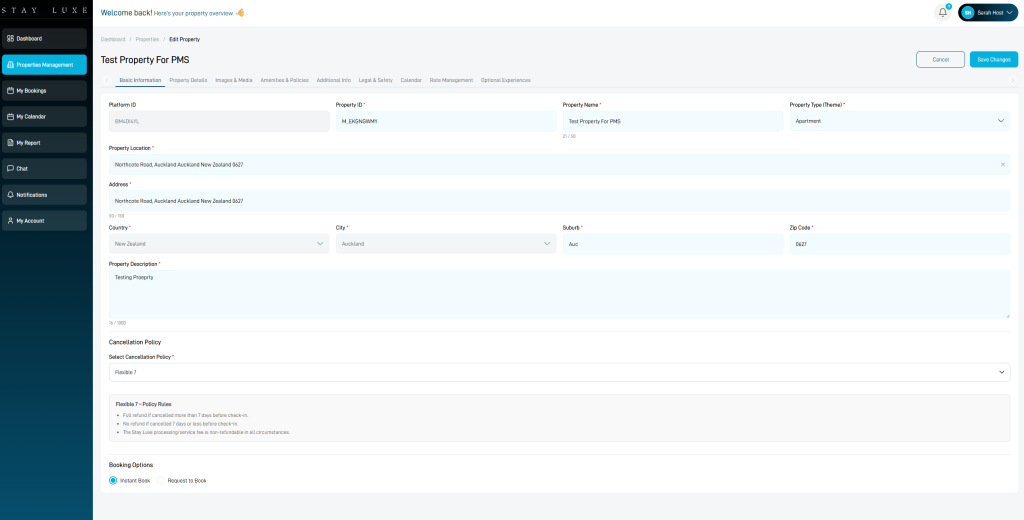
Step 2: Property Details
Complete the pricing, availability and capacity information:
- Base Nightly Rate: Enter your standard nightly price.
- Minimum Stay: Set the minimum number of nights guests can book.
- Maximum Stay: Set the maximum number of nights allowed for one booking.
- Currency: Select the currency you want to use when viewing your rates and reports.
- Check-in Time: Enter the earliest time guests can check in.
- Check-out Time: Enter the time guests must check out.
- Booking Lead Time: Set how much advance notice you require before a guest can book. For example, if the lead time is one day, guests cannot make a same-day booking; the earliest available check-in date will be the following day.
- Property Size: Enter the approximate property size in square metres.
- Member Discount: Offer a discount to StayLuxe members. A member discount may improve your listing’s visibility and booking conversion.
- Weekly Discount: Offer a discount to encourage guests to book longer stays.
- Monthly Discount: Offer a discount to attract long-term bookings.
- Cleaning Fee: Enter the cleaning fee charged for each booking.
- Total Guests: Enter the maximum number of guests allowed.
- Property Status: Select the current status of the property.
- Available From and To: Set the dates when the property will be available.
- Beds and Bathrooms: Add the correct number and type of beds and bathrooms.
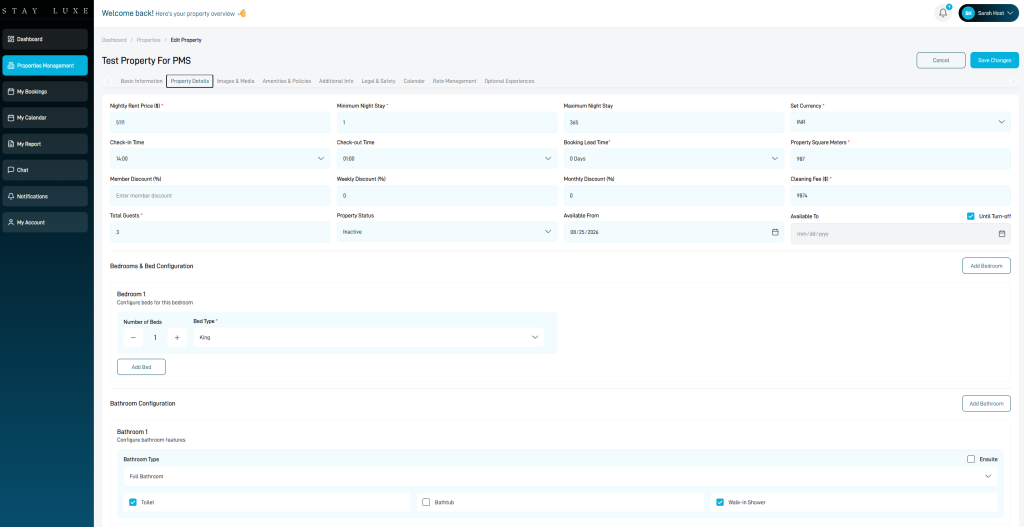
Step 3: Images and Media
Upload clear, high-quality photos that accurately represent your property.
Recommended image specifications:
- Landscape orientation
- At least 1080 × 720 pixels
- JPG, JPEG, PNG or WEBP format
- Maximum file size of 5 MB per image
Use bright, well-composed images and include important areas such as bedrooms, bathrooms, living spaces, the kitchen, outdoor areas and views.
Step 4: Amenities and Booking Policies
Amenities
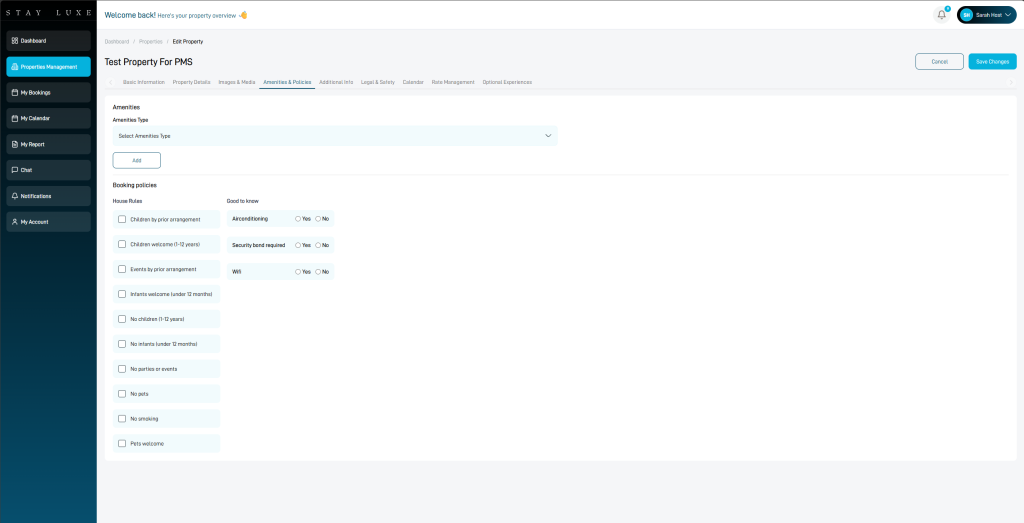
Review each amenities category and select every amenity available at the property. Only select amenities that guests will be able to use during their stay.
Booking Policies
Select all booking policies and house rules relevant to your property.
Step 5: Additional Information
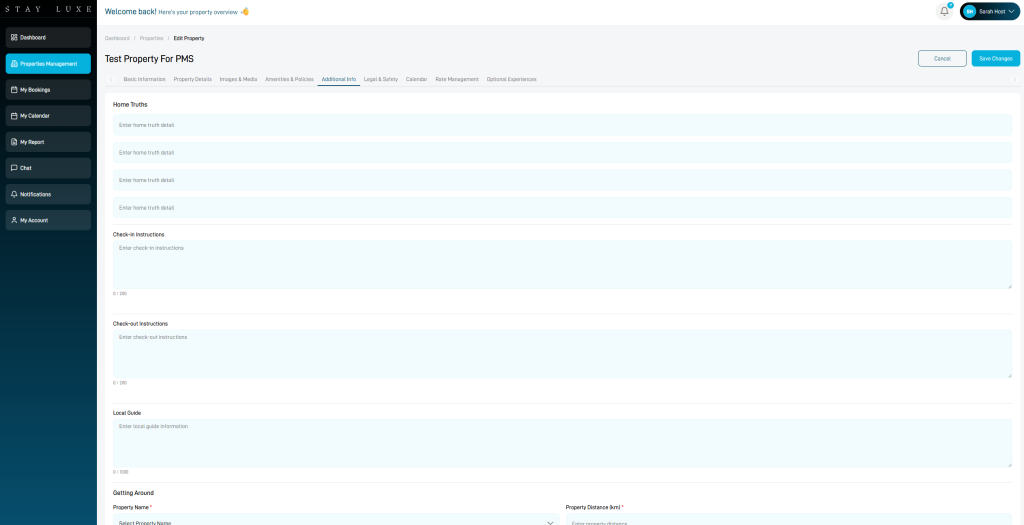
Complete the following sections:
- Home Truths: Add four honest and useful facts that guests should know before booking.
- Check-in Instructions: Add the property’s check-in instructions. If these will be provided closer to arrival, you can enter: “Check-in instructions will be sent to you by message.”
- Check-out Instructions: Add the property’s check-out instructions. You can also state that these will be provided by message.
- Getting Around: We recommend adding useful nearby locations, including the airport, cafés, supermarkets, pharmacies and medical centres.
- Local Attractions: Add any nearby attractions or activities you recommend. If you do not have this information, the StayLuxe team can help complete it during the review process.
Step 6: Legal and Safety Information — Optional
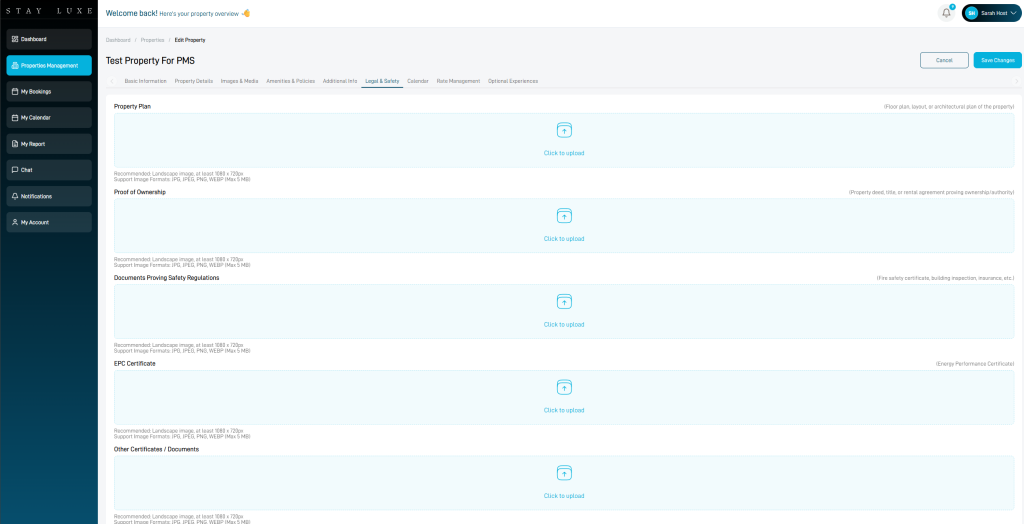
Add any relevant legal, licence, safety or compliance information for the property.
Although this section is optional, we recommend completing it if you have relevant information available.
Step 7: Calendar
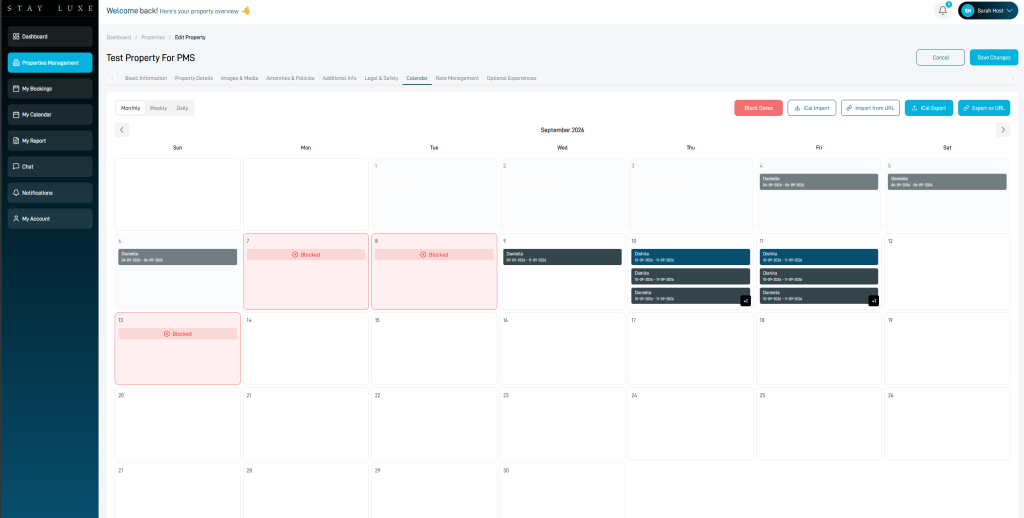
If your listing was imported through a connected PMS API, you do not need to make any changes to the calendar section.
If your listing is not connected through a PMS integration, import the property’s iCal calendar from Airbnb, Booking.com, Vrbo or another booking platform. This helps keep your availability updated and reduces the risk of double bookings.
Learn how to import an iCal calendar into StayLuxe.
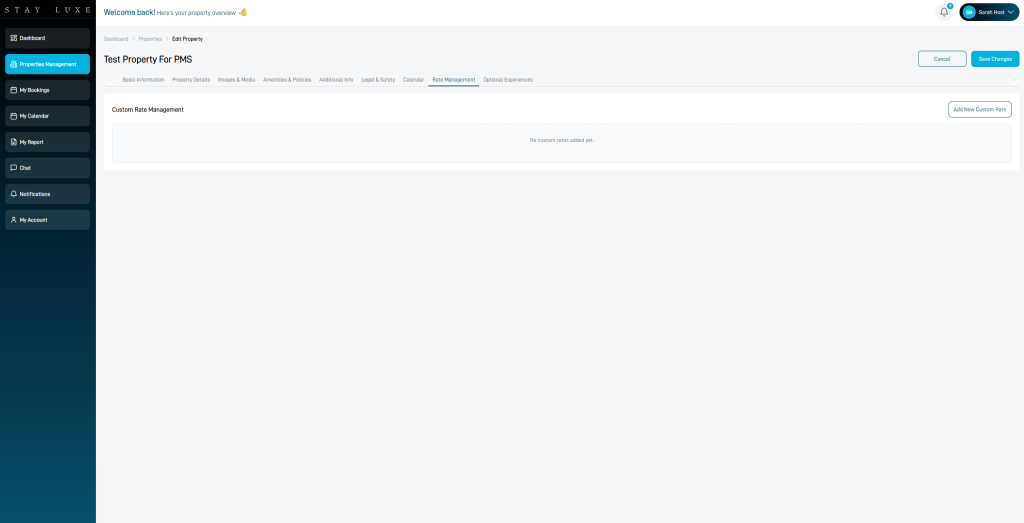
Step 8: Rate Management
Custom rates override the property’s base nightly rate for the selected dates.
Only create a custom rate when you want to apply different pricing, minimum-stay requirements or other rate settings for a specific date or period.
Learn how to set a custom price for specific dates.
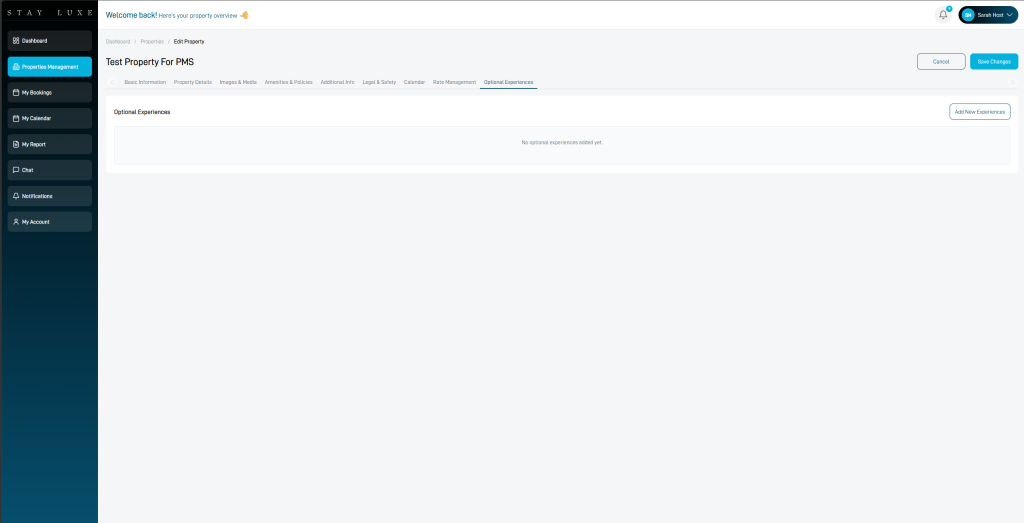
Step 9: Experiences — Optional
Add any experiences or additional services you would like to offer guests, such as:
- Private chefs
- Helicopter flights
- Boat charters
- Airport transfers
- Guided tours
- Wellness services
Guests will be able to request these experiences when making their booking.
Submit Your Listing for Review
After completing the listing, select Submit for Review.
Important: Your listing will not become live immediately after you select Submit for Review. It will be sent to the StayLuxe administration team for review.
The listing will only become visible to guests after it has been reviewed and approved by a StayLuxe administrator. If any information is missing or needs to be changed, the StayLuxe team may contact you before approving the listing. StayLuxe may also alter your listing photos, description, etc to ensure brand guidelines are met.